Slide editor
Every slide is yours to edit.
Slicess designs the deck, then hands you a real canvas. Change text, shapes, images, charts and layouts by hand, or tell the AI what to fix.
The full editor on every plan, Free included


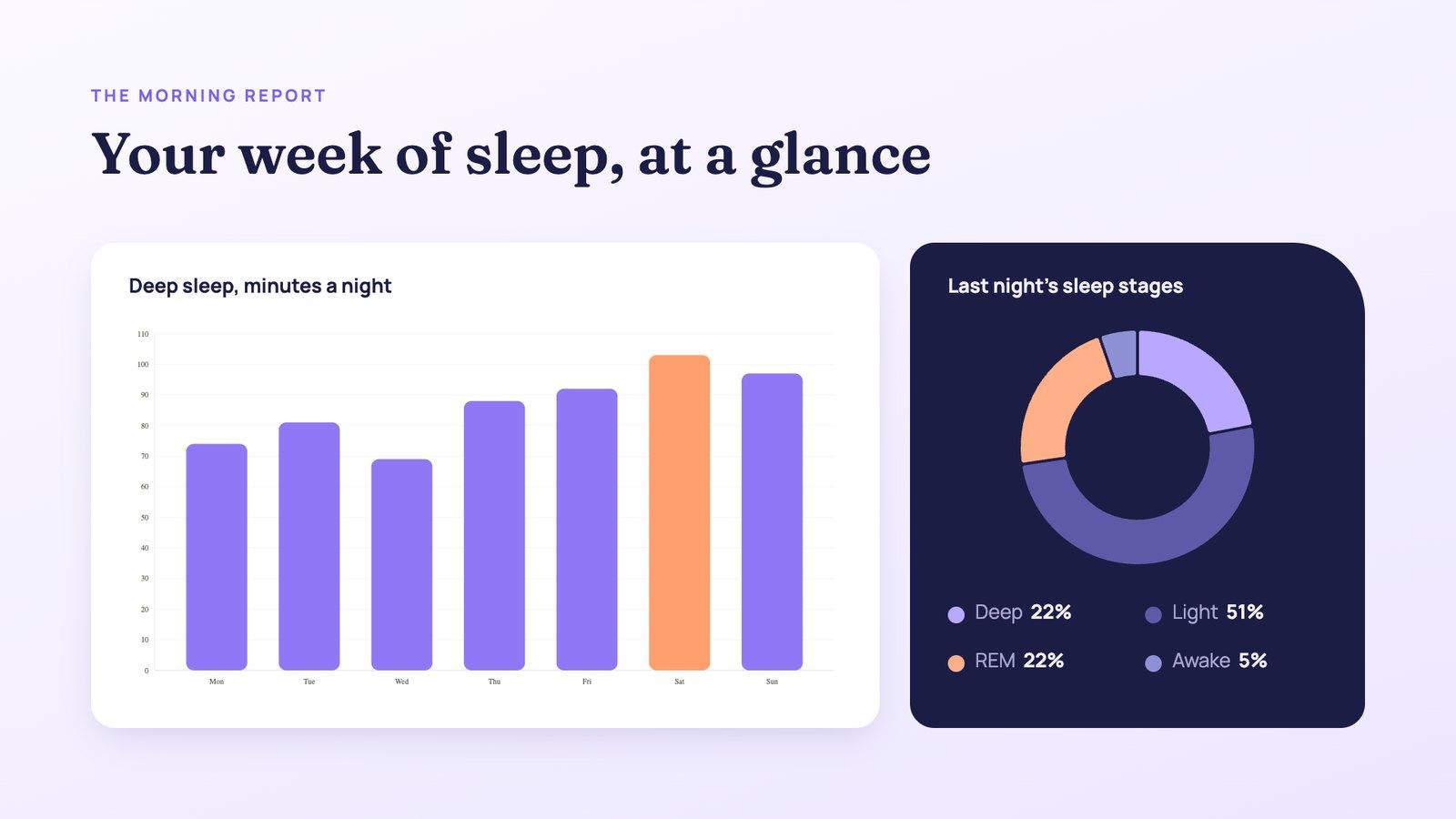
Slides from an example deck for a made-up sleep app, finished in the Slicess editor
In the editor
One canvas for every slide.
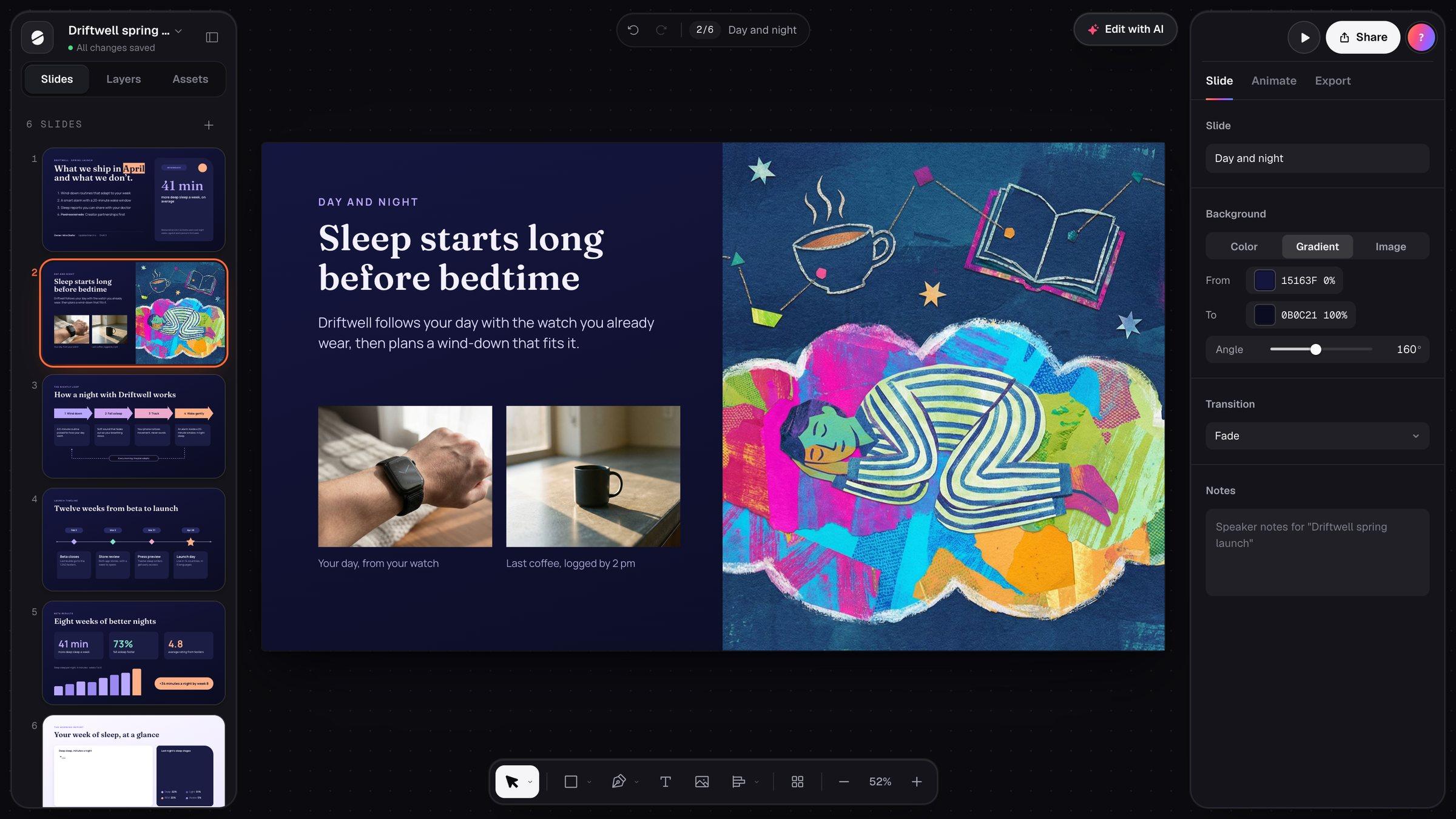
Inside the editor
Everything a slide needs.
The panels you’ll use most, exactly as they look in Slicess.
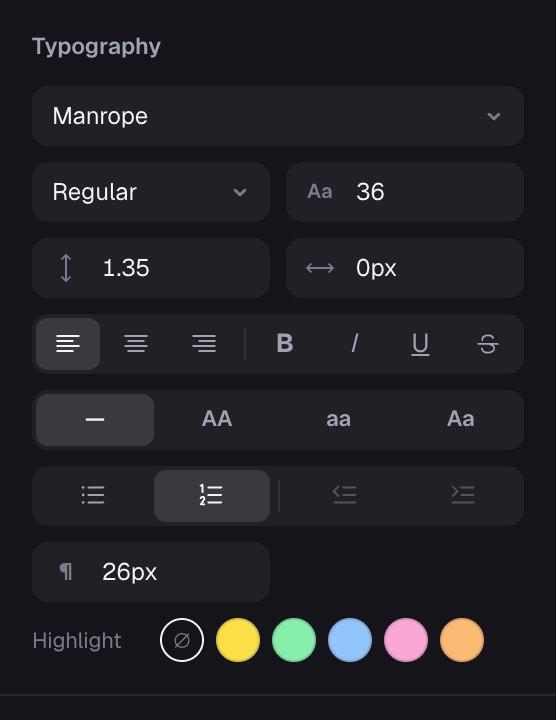
Typography
60 Google fonts with exact size, weight, line height and letter spacing. Lists, highlights, text case, and boxes that keep their height or shrink text to fit.
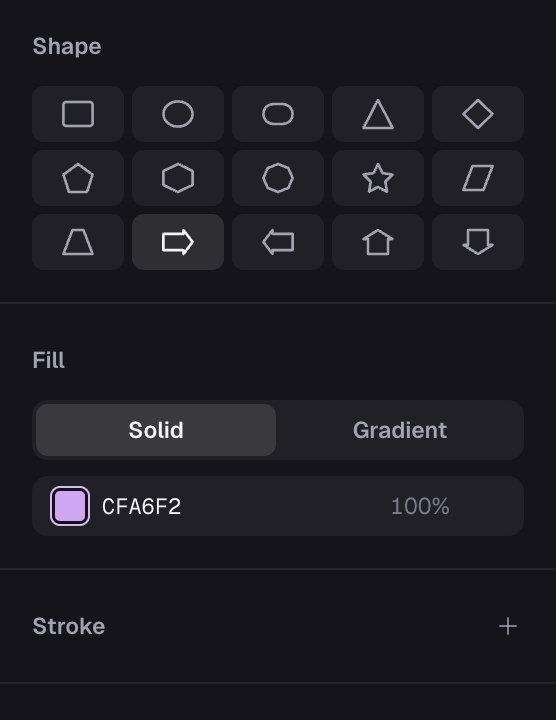
Shapes and lines
15 shapes with solid or gradient fills, solid, dashed or dotted outlines, arrowheads, a radius for each corner, and text typed inside.
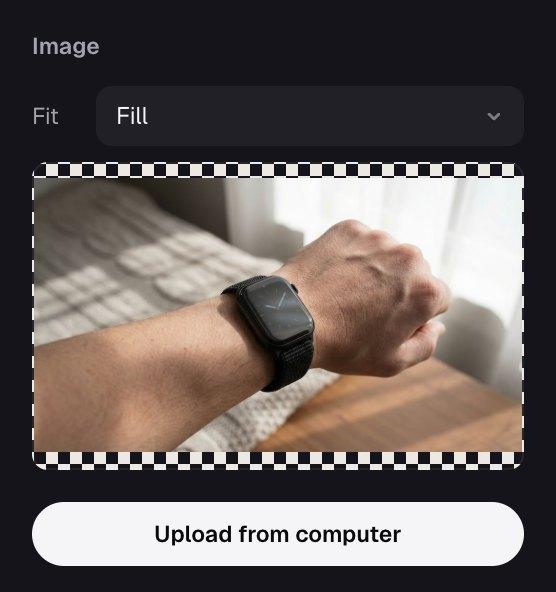
Images
Upload PNG, JPG, WebP or SVG, or insert your brand’s logos and photos. Fill the frame, fit inside it or tile, and swap the picture in one click.
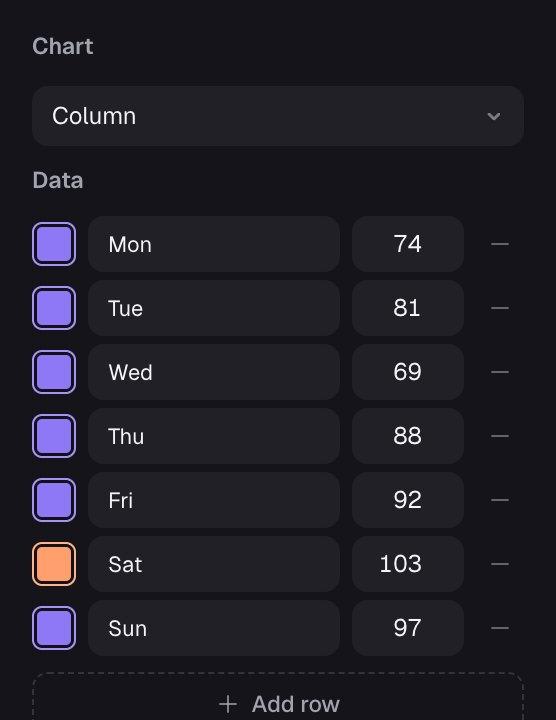
Charts
Bar, column, line, area, pie and donut. Type the labels and numbers, give each a color, and change the chart type any time.
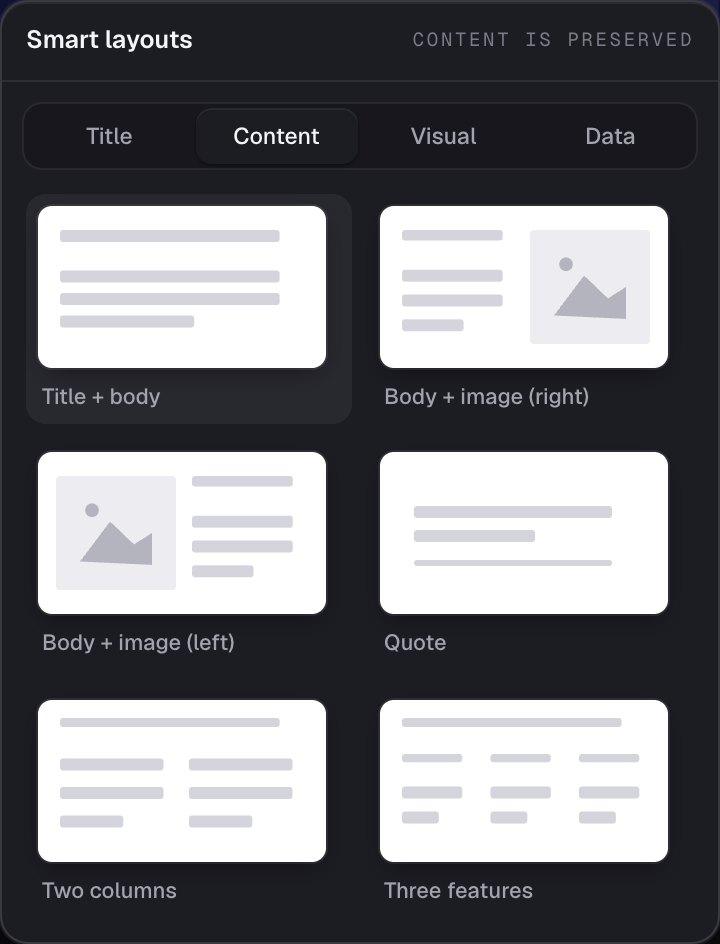
Smart layouts
18 layouts for titles, content, visuals and data. Pick one and Slicess rearranges what’s already on the slide.
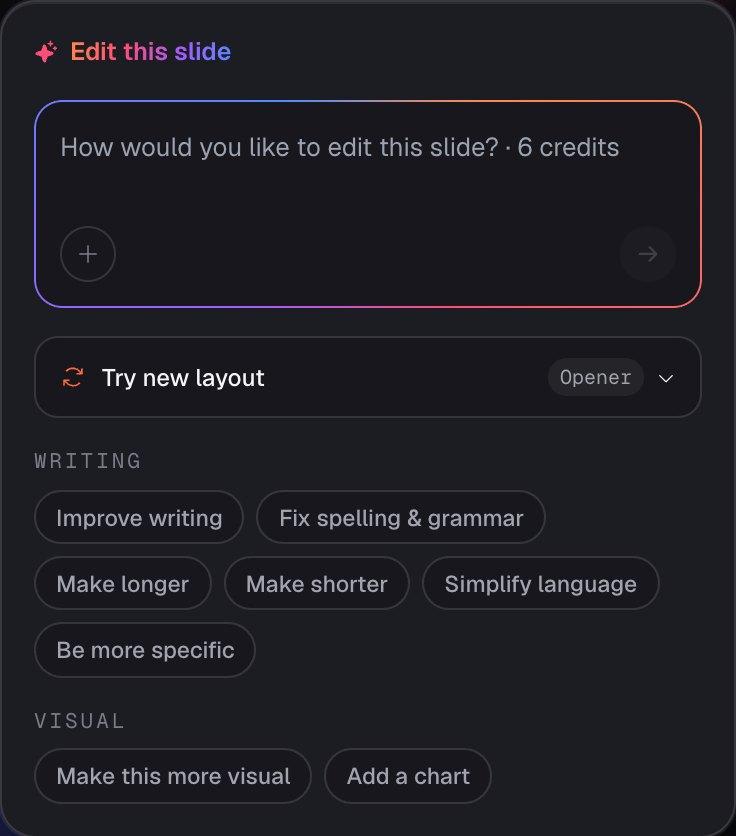
Edit with AI
Say what to change, or pick a preset: improve the writing, fix spelling, shorten it, simplify it, make it more visual or add a chart.
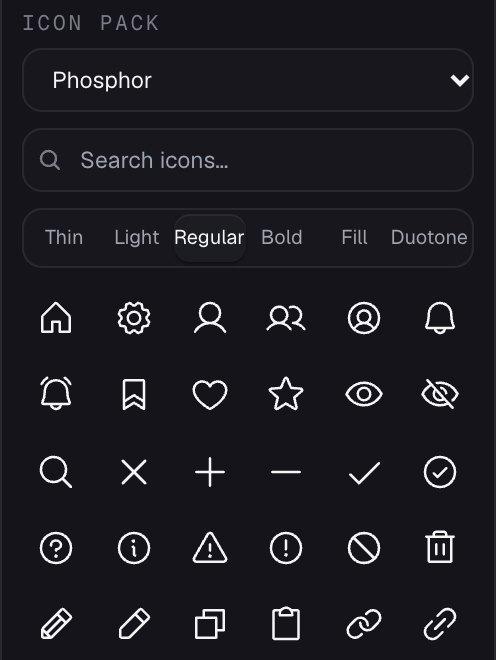
Icons and brand assets
283 icons in six weights, from thin to duotone, next to your Brand Kit’s colors, fonts, logos and photos.
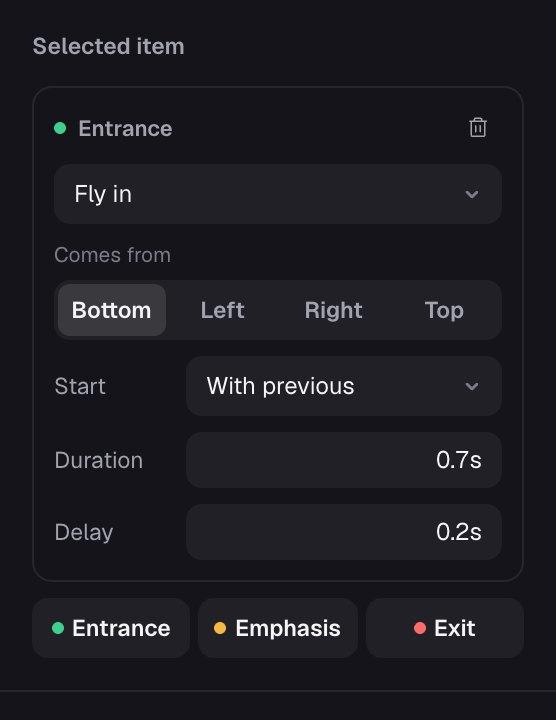
Animations
Entrances, emphasis and exits, each with its own timing, played click by click in present mode.
See animationsHow it works
Fine-tune a slide in three moves.
Click anything
Every text box, shape, line, image and chart is its own object. Select several of the same kind to change them together.
Change it by hand or with AI
Use the panel for exact settings, or ask Edit with AI to rewrite, shorten or rework the slide for you.
Present or export
What you see on the canvas is what you present, share and export to PDF or PowerPoint.
What you get
The details that make a slide look finished.
Design-tool control, without a design tool’s learning curve.
- Exact position, size and rotation, flips, layer order, and alignment to the slide
- Text boxes that keep their height and shrink text to fit, plus lists, highlights and text case
- Gradient fills, outlines, shadows and blur on shapes, with a radius for each corner
- Native charts that stay editable when you export to PowerPoint
- Backgrounds in a color, a gradient or a photo, slide transitions and speaker notes
- Autosave, undo and redo, and a focus mode that hides the panels
| Plans | Every plan, Free included |
| On a slide | Text, 15 shape types, lines and arrows, images, 6 chart types and 283 icons |
| Fonts | 60 Google fonts, plus your Brand Kit’s, including fonts you upload |
| Layouts | 18 smart layouts: title, content, visual and data |
| AI edits | 6 credits each; editing by hand is free |
| Saving | Automatic, a few seconds after you stop |
Questions
The editor, answered.
Can I edit slides the AI made?
Does it work like PowerPoint?
What can Edit with AI do?
Will my formatting survive an export?
Is the editor free?
More with Slicess
More you can do with a deck.
Let AI start it. Make it yours in the editor.
Describe it, drop in your sources, and get a real canvas back in about a minute. Free to start.
100 free credits every month · No card needed