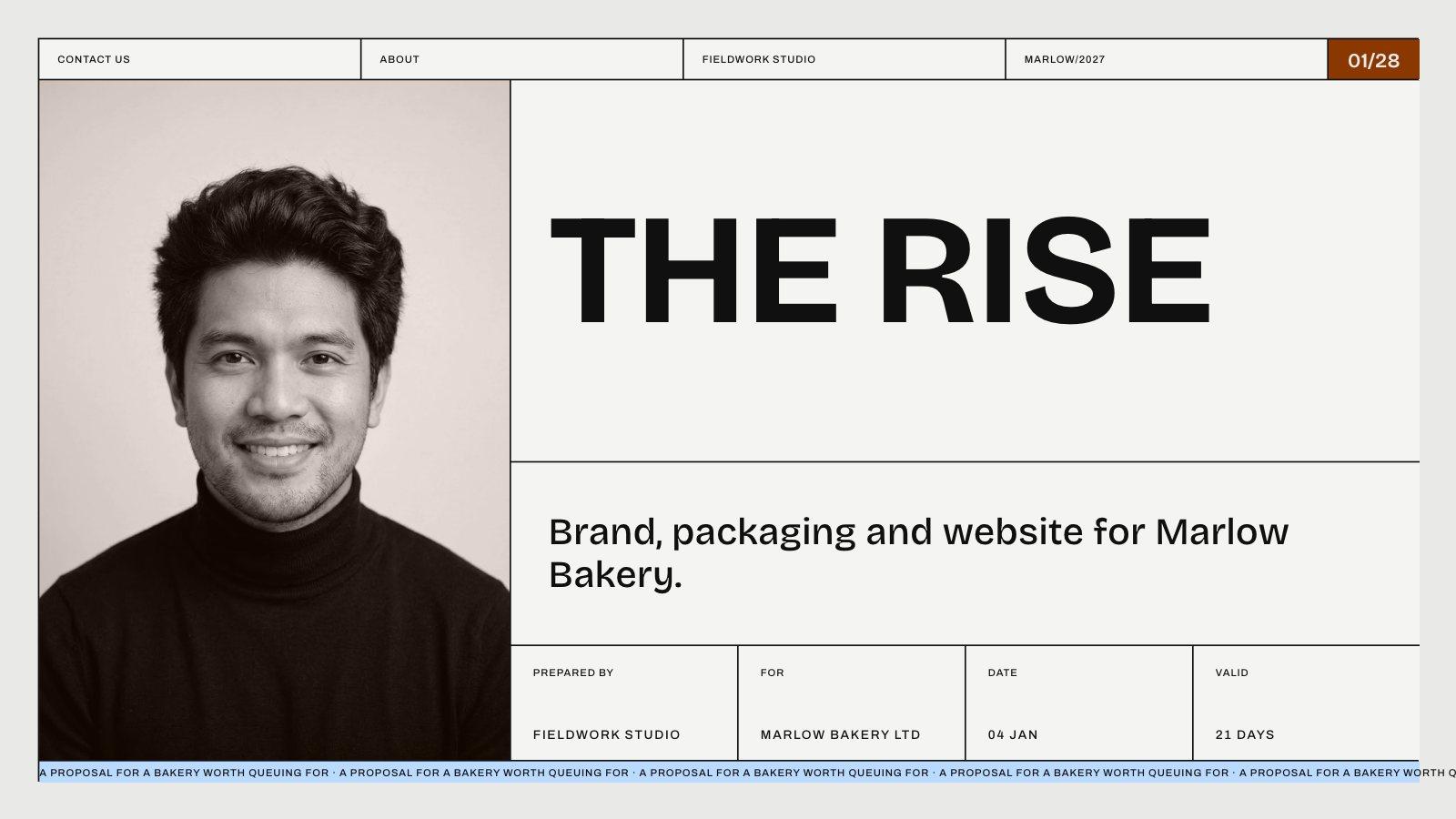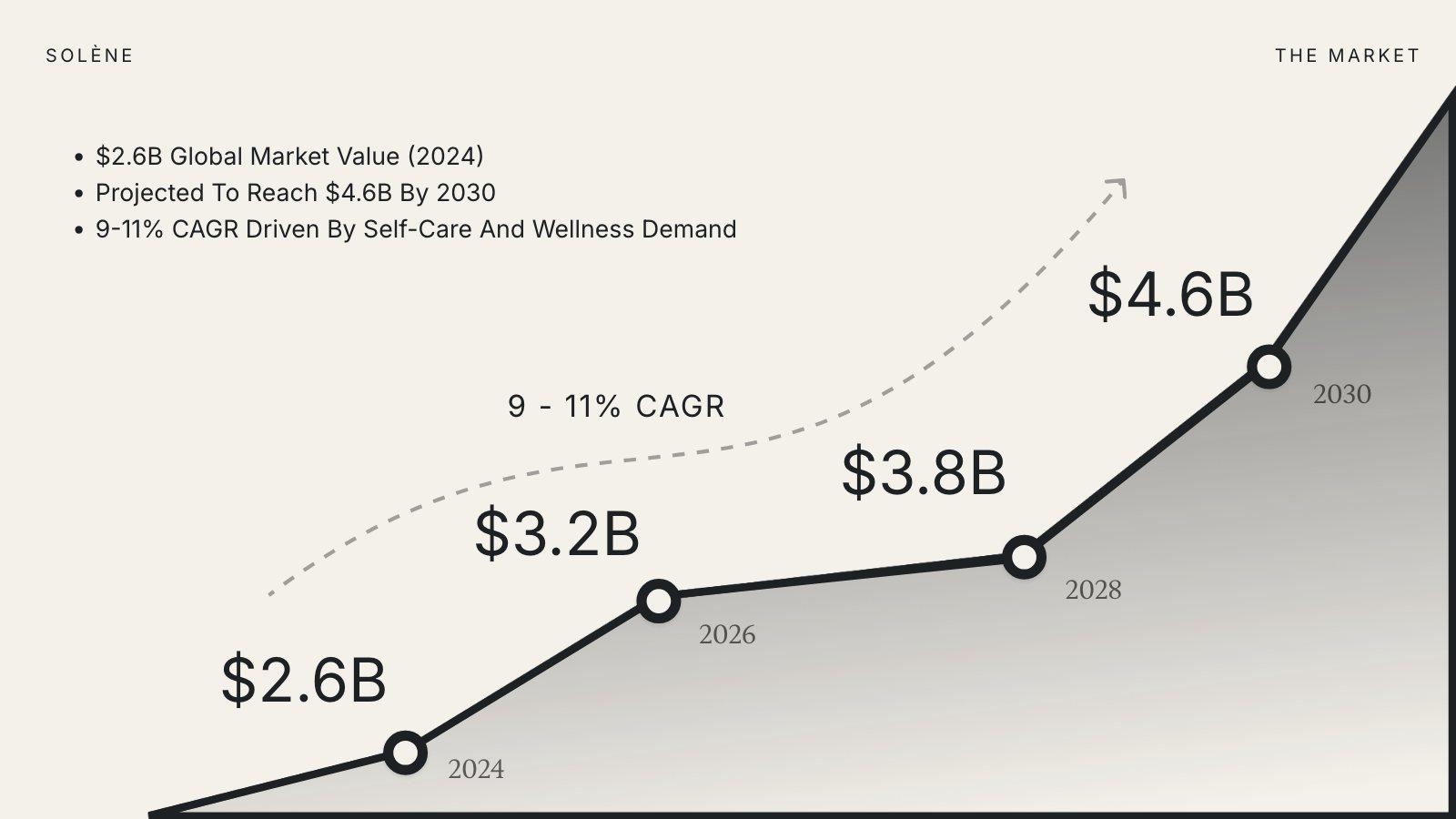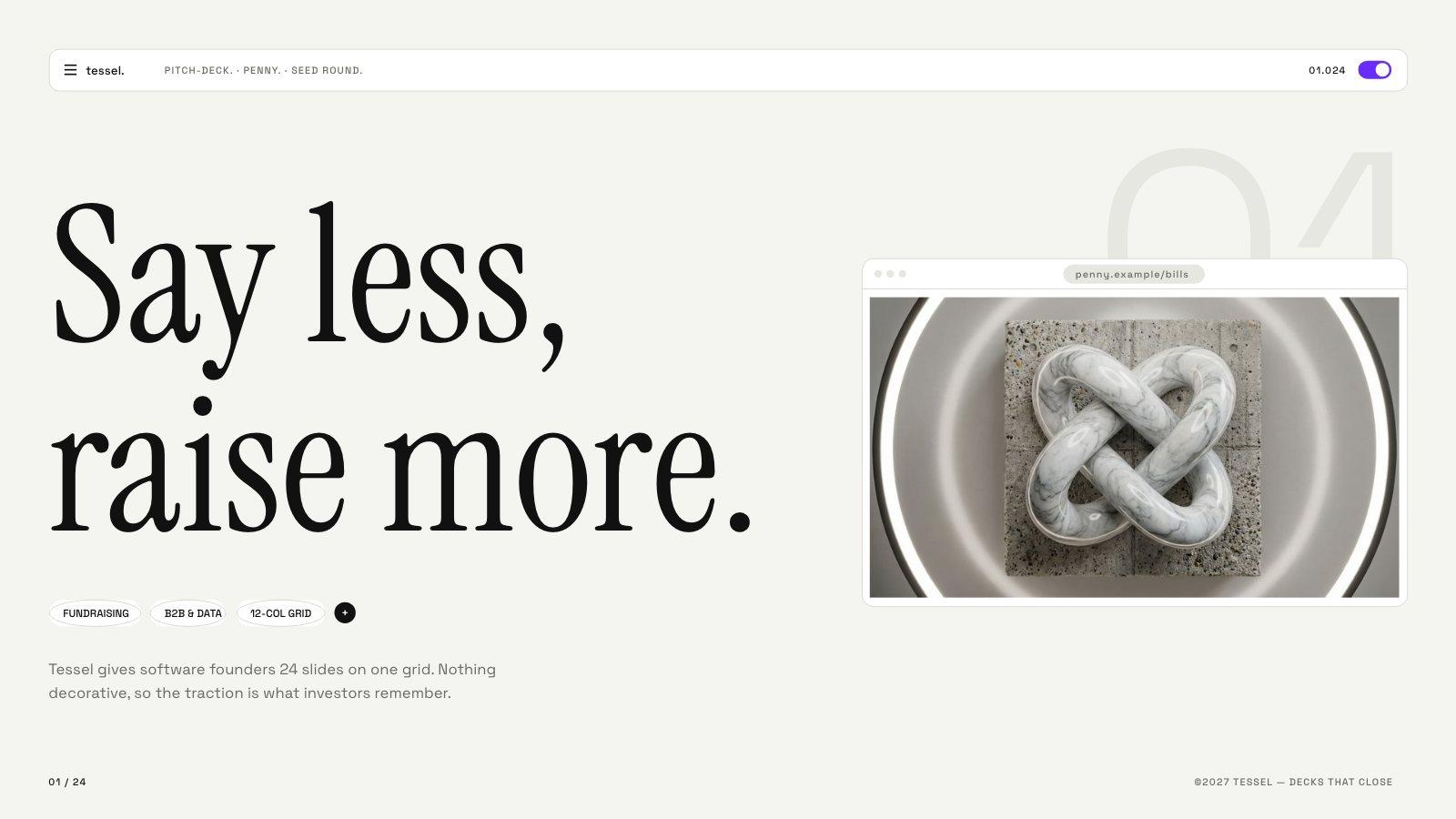
You don’t choose a template. After you press Generate, Slicess picks one and builds your deck from that template’s own slides — not a loose imitation of its style.
How the template is picked
- Your Brand Kit comes first. With a brand selected, Slicess picks the template whose colors, light or dark feel and mood are closest to your brand.
- Otherwise, your topic decides. A pitch gets a pitch template, a report a report template, a talk a talk template — matched to your industry and audience.
- Attached files count. Attach a PDF or document and Slicess reads it first to work out what the deck is for.
How the AI uses the template
- It reads every slide in the template — covers, agendas, stats, team, timelines, quotes — not just the first few.
- It plans your story and picks the template slide that fits each part: a three-number layout for traction, a timeline for the roadmap.
- It writes your words into the slide’s own text boxes, sized to fit. Long text is set a little smaller or shortened; numbers are never cut.
- It paints a new picture for each photo box, shaped to that box, and puts it in the same place — same size, same crop, same layer. Nothing is stacked on top of the old photo.
What stays exactly as designed
- Fonts, colors, backgrounds and spacing
- Shapes, icons, lines and decorations
- Round and rounded photo crops
- The template’s logo spots — filled with your logo when you attach one with “logo” in its file name
Things to know
- Charts drawn into the design keep their shapes. Check the numbers after generating and edit them by hand if they’re not yours.
- Your photos win. Attach photos and the AI can use them in photo boxes instead of generating new ones.
- Not enough credits for every picture? Boxes without a new picture keep the template’s own photo.
- Slide limits still apply (Free 8, Pro 15, Plus 25, Ultra 40 slides per AI deck). The closing slide is always kept.