AI photo editing
Edit the photos on your slides with AI.
Select a photo and press Edit with AI. Remove its background, brush over something to erase or move it, or describe a change in plain words, without leaving the slide.
Every plan · 20 credits an edit
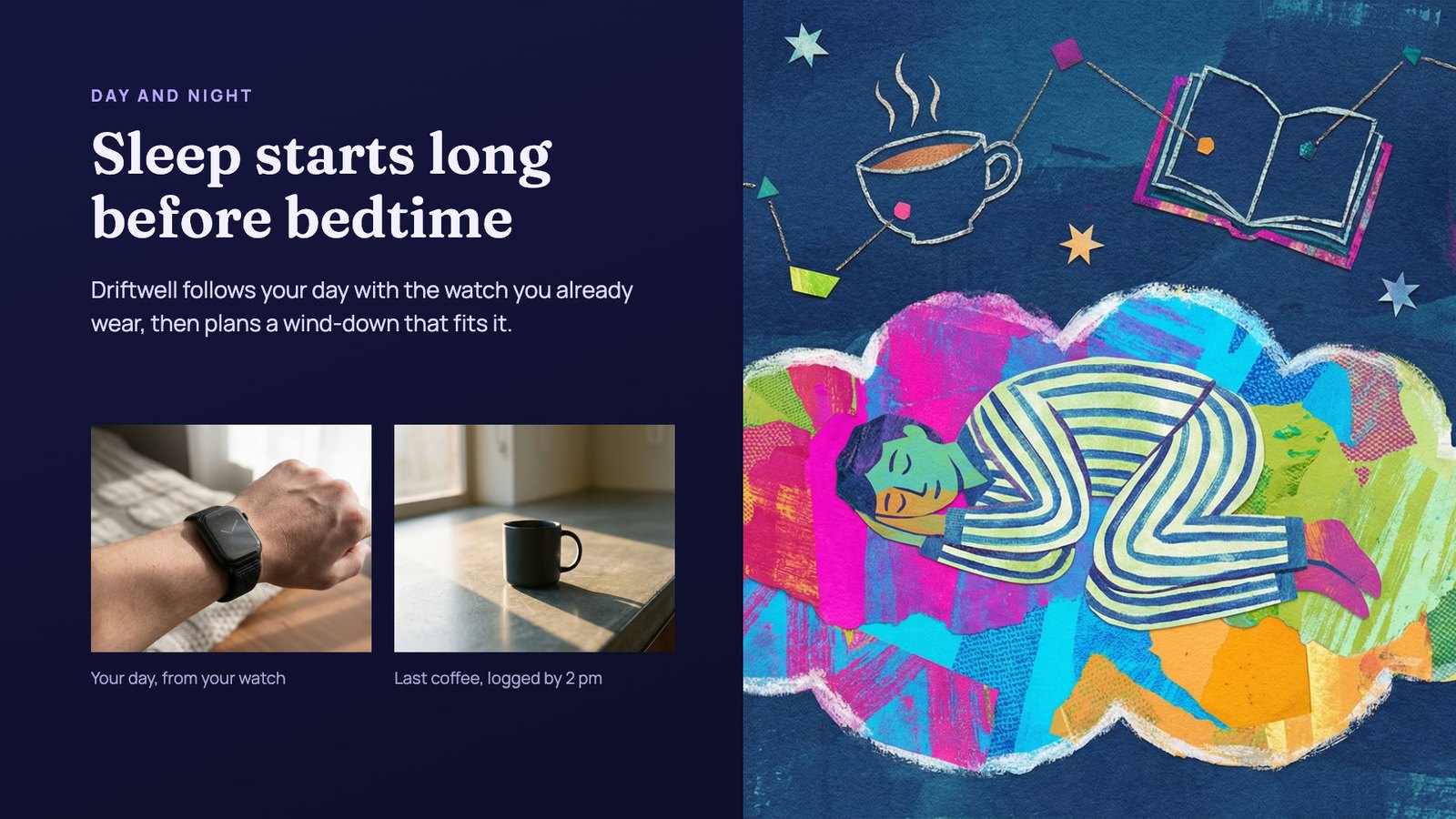
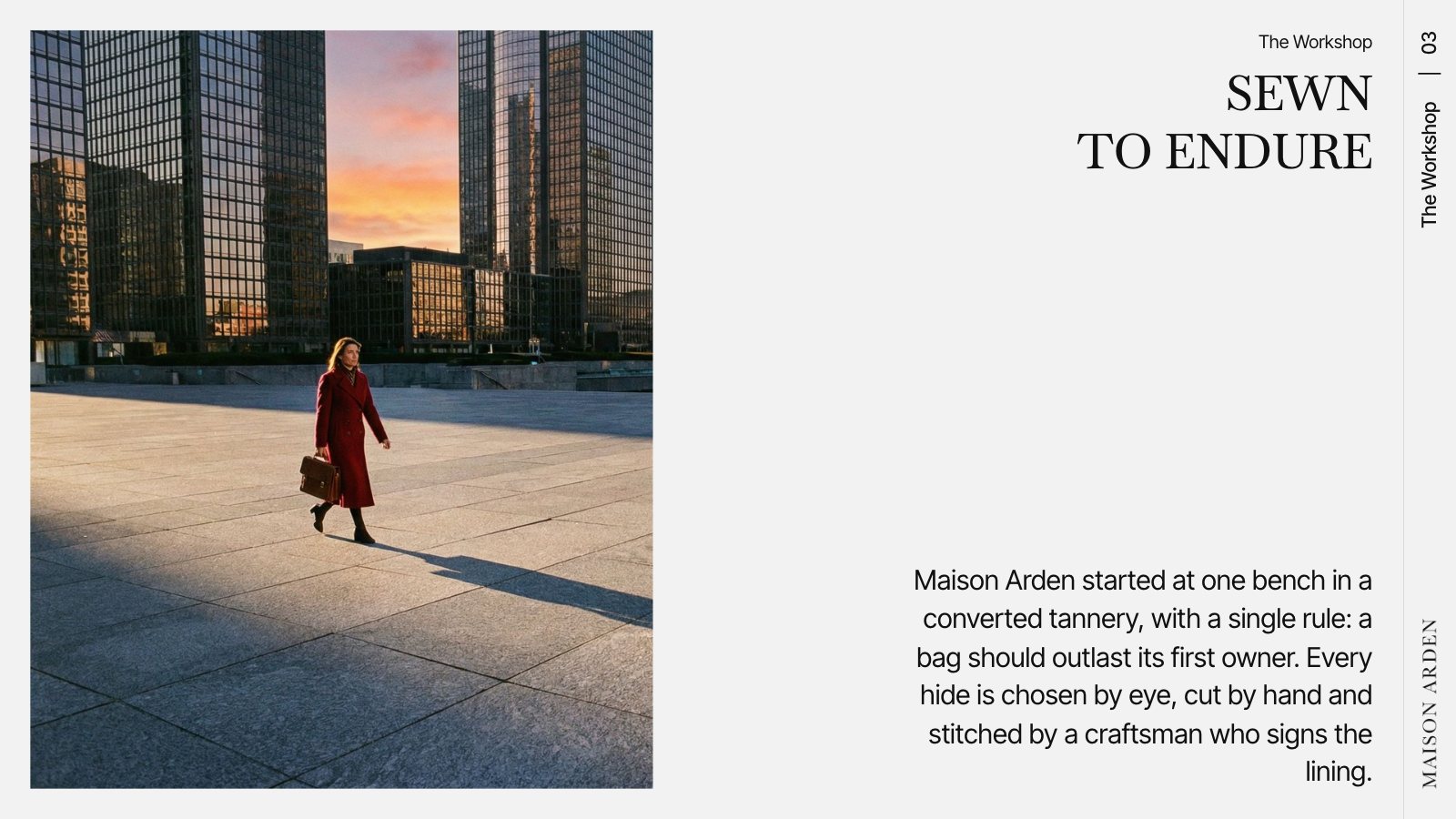
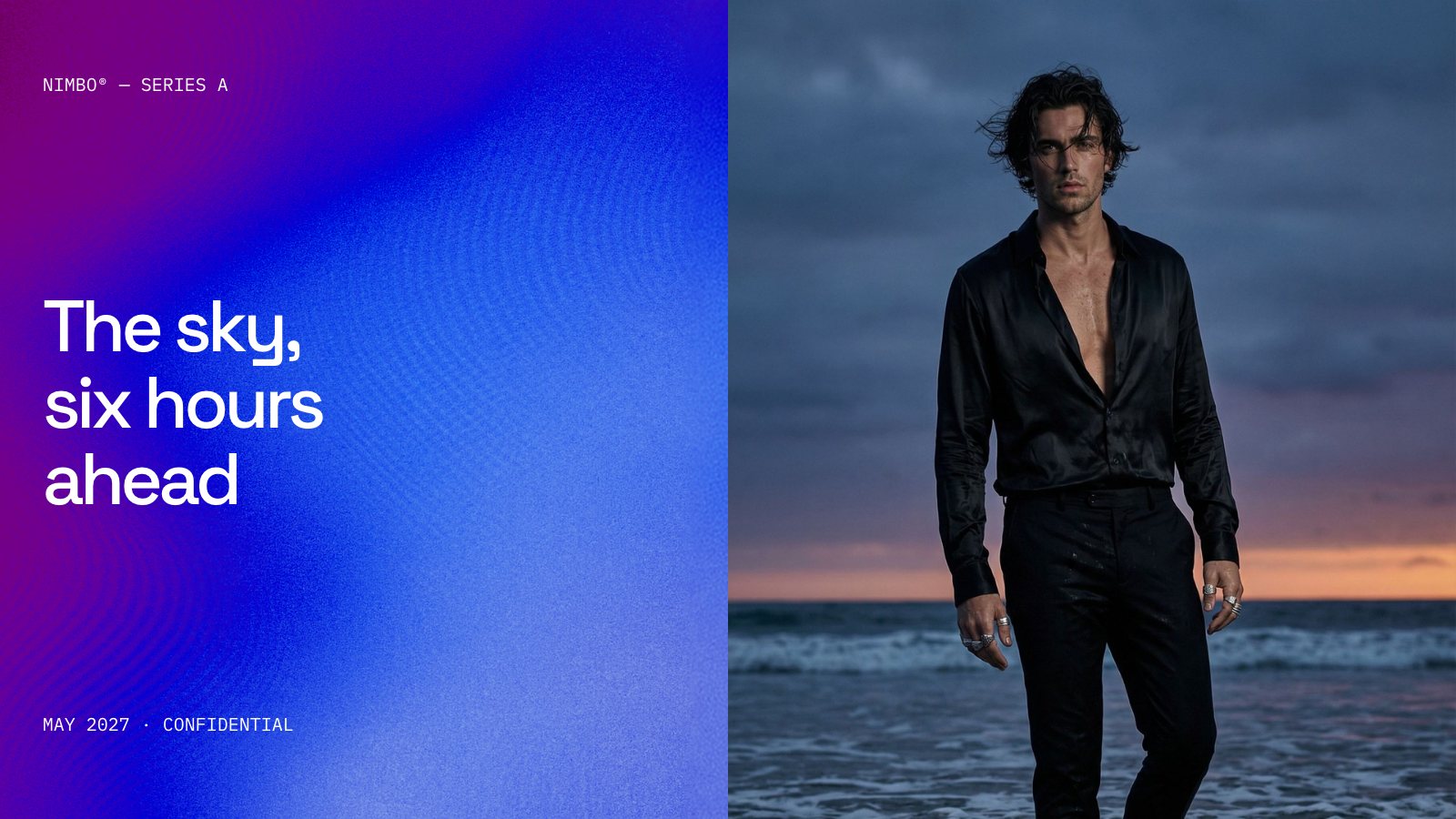
Photo slides made in Slicess. Select any photo on a slide to edit it with AI
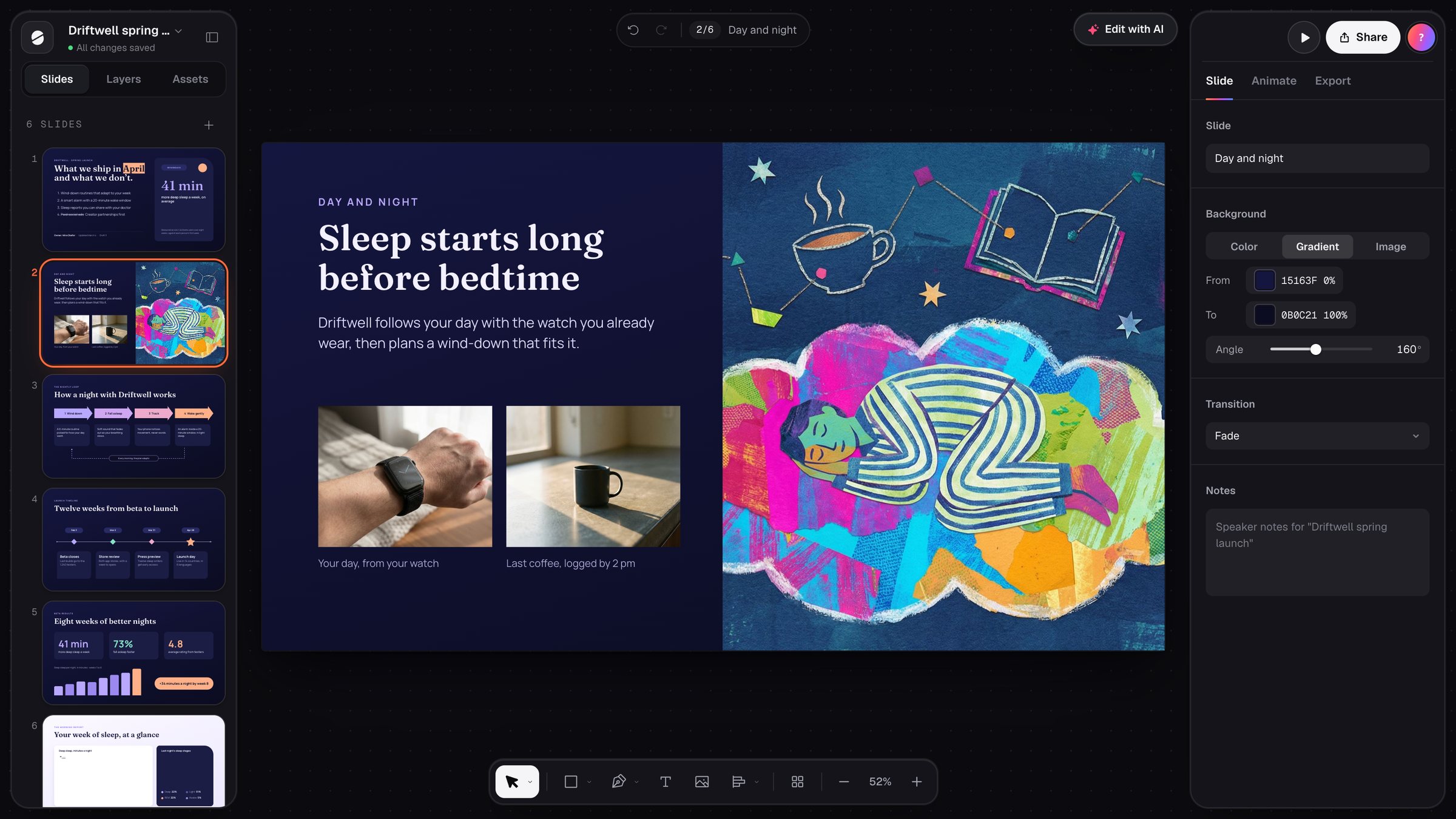
In the editor
Right where your photos are.
How it works
A photo edit in three steps.
Select a photo
Click any photo on a slide, then press Edit with AI. With a photo selected, it opens Edit this photo.
Pick an edit
Remove the background in one click, brush over something to erase or move it, or describe a change like “make it evening”.
Keep it or undo it
Each edit is one ⌘Z, and Restore original brings back the photo from before its first AI edit.
What you get
Fix the photo, not just the slide.
No exporting to a photo app and back. The edited photo stays in place, with its crop and size.
- Remove the background in one click, and keep the photo sharp
- Brush over something to erase it, shadow and reflection too
- Move something: it becomes its own layer you can drag anywhere, and the gap is filled
- Describe a change in plain words, like “make it evening”
- Undo any edit, or restore the original photo
| Edits | Remove background, erase, move, describe a change |
| Cost | 20 credits an edit (Move counts as one) |
| Plans | Every plan, Free included |
| Undo | One ⌘Z per edit, or Restore original |
Questions
Photo editing, answered.
Will my photo lose quality?
What does it cost?
Can I undo an edit?
Can I make a new image instead?
More with Slicess
More you can do with a deck.
Edit your next photo on the slide .
Describe it, drop in your sources, and get a real canvas back in about a minute. Free to start.
150 free credits every month · No card needed