Presenter view and Ask AI
Present live. Let AI answer questions.
Give the presentation from your browser with your notes, a timer and the next slide on your screen only. Then share a link or a QR code, and AI answers people’s questions from your slides, long after the meeting ends.
Presenter view and QR codes on every plan · Ask AI on Pro and up
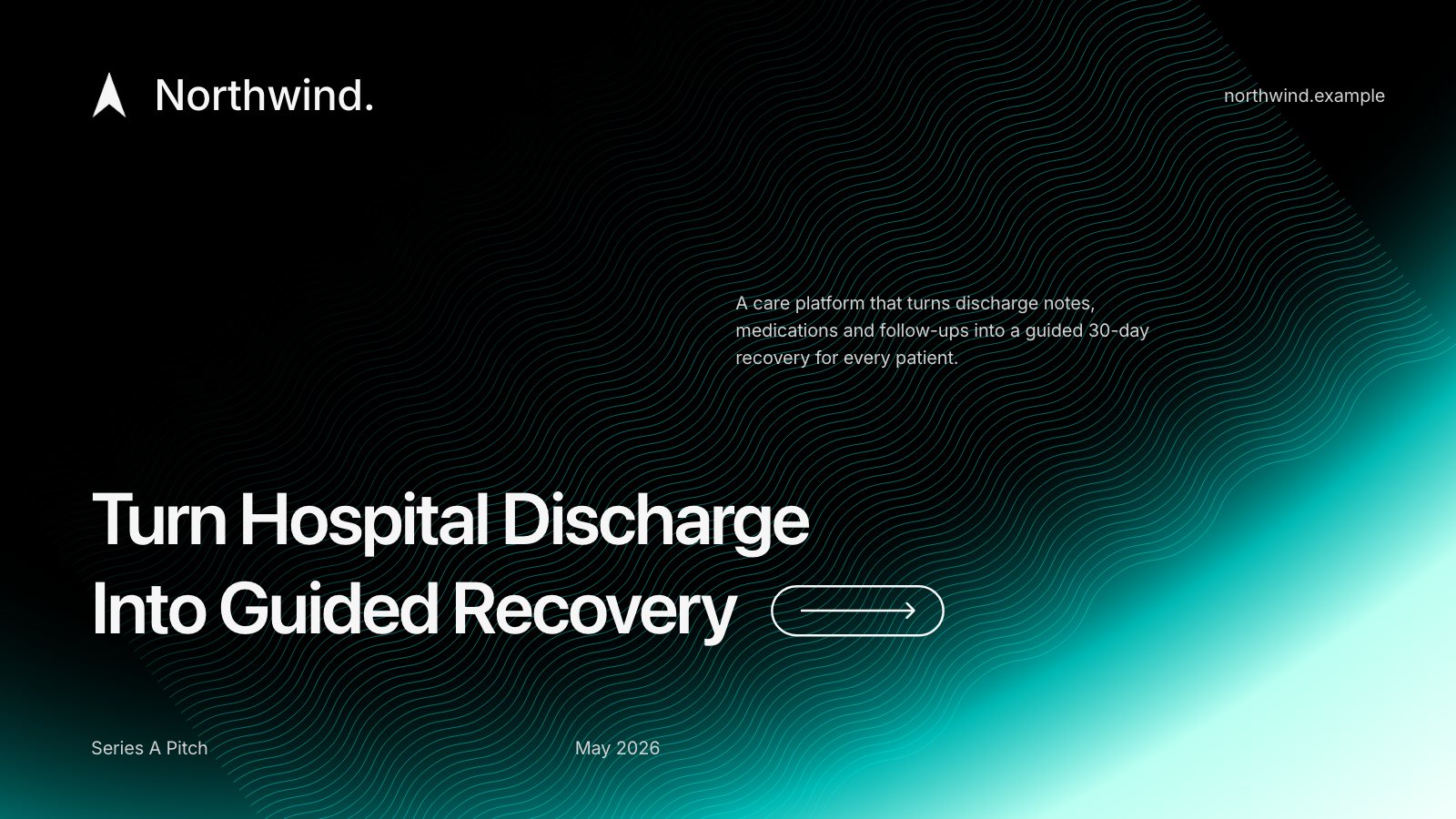
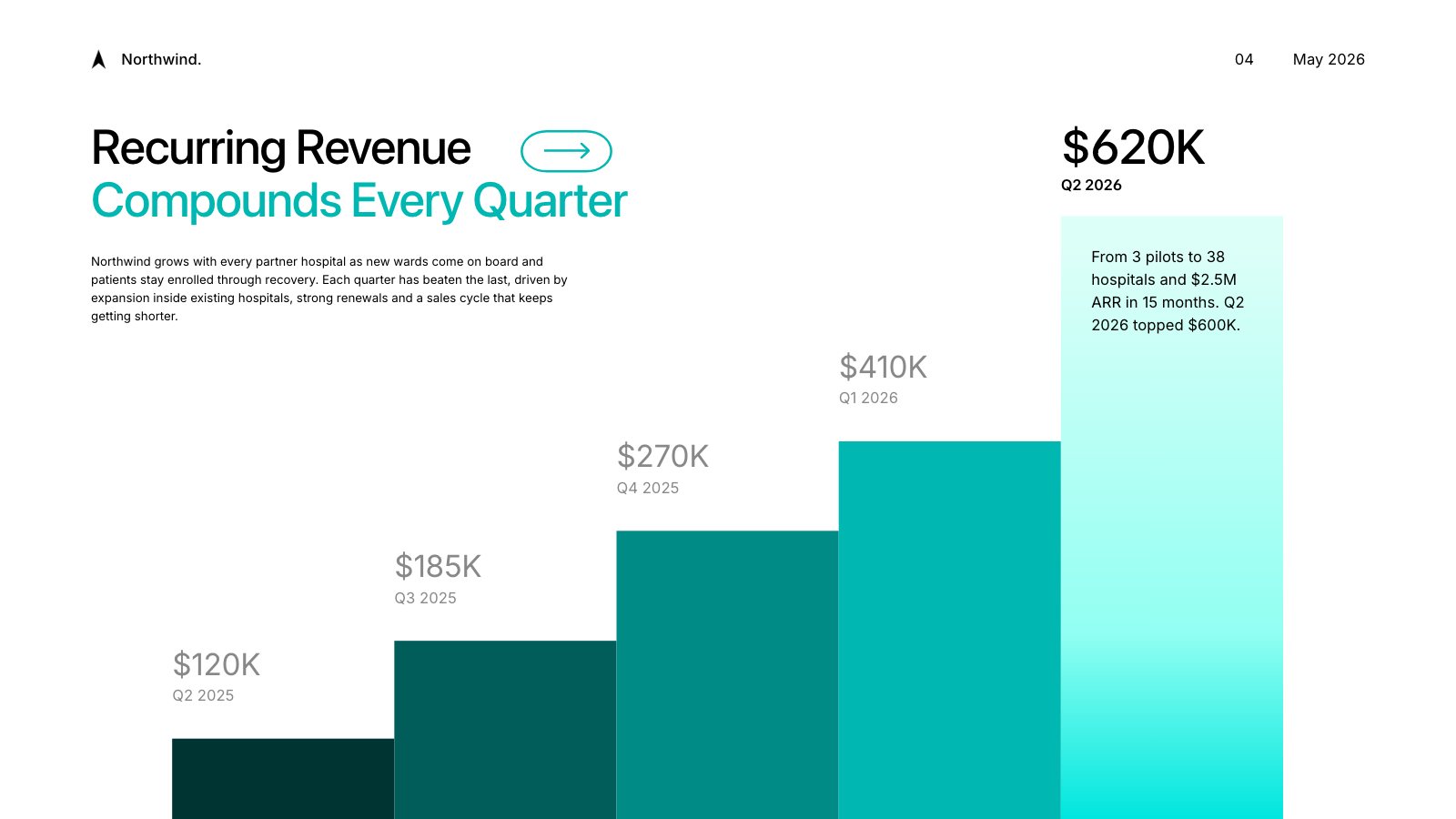
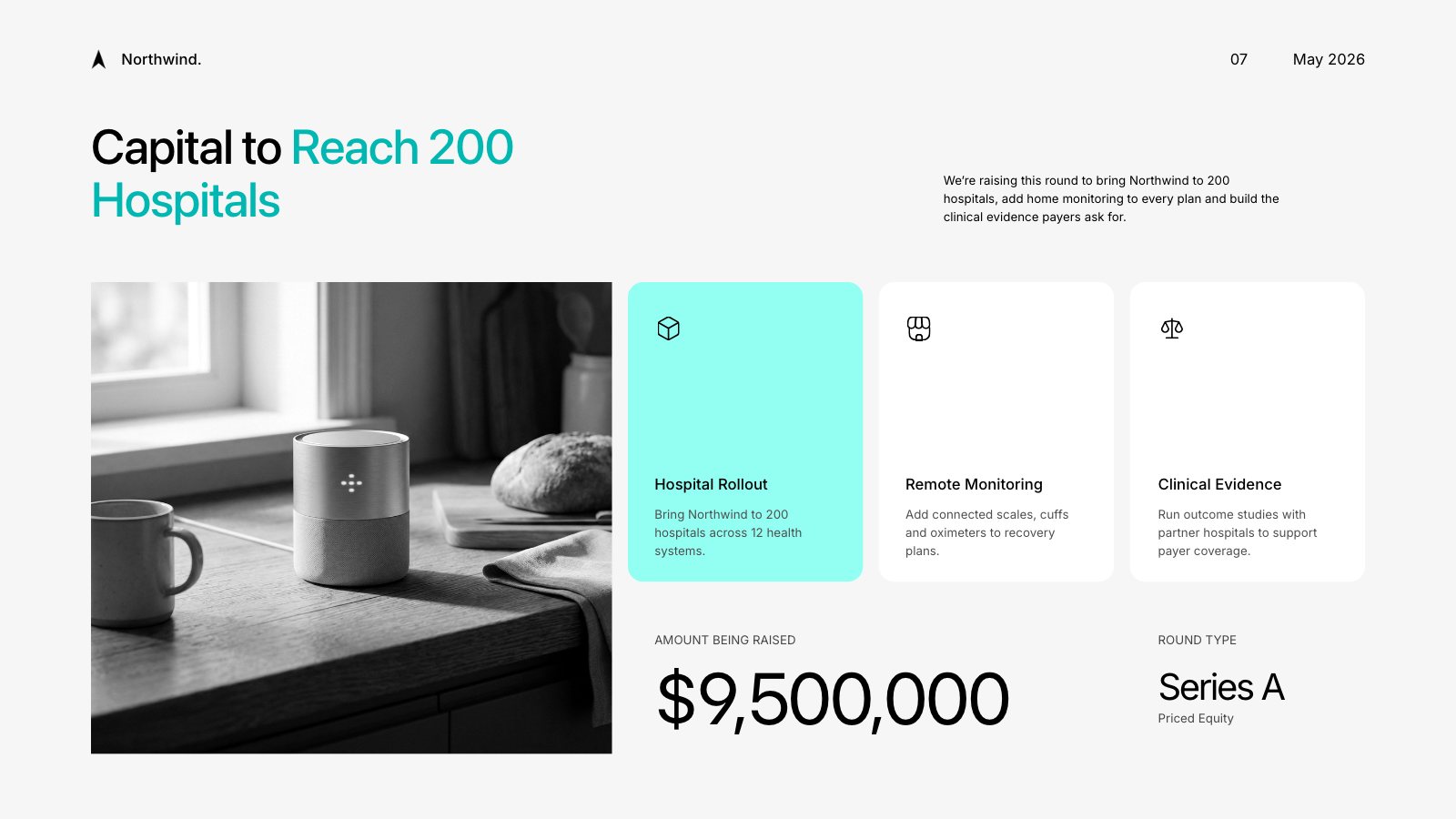
Slides from an example Series A deck, as the room sees them while you present
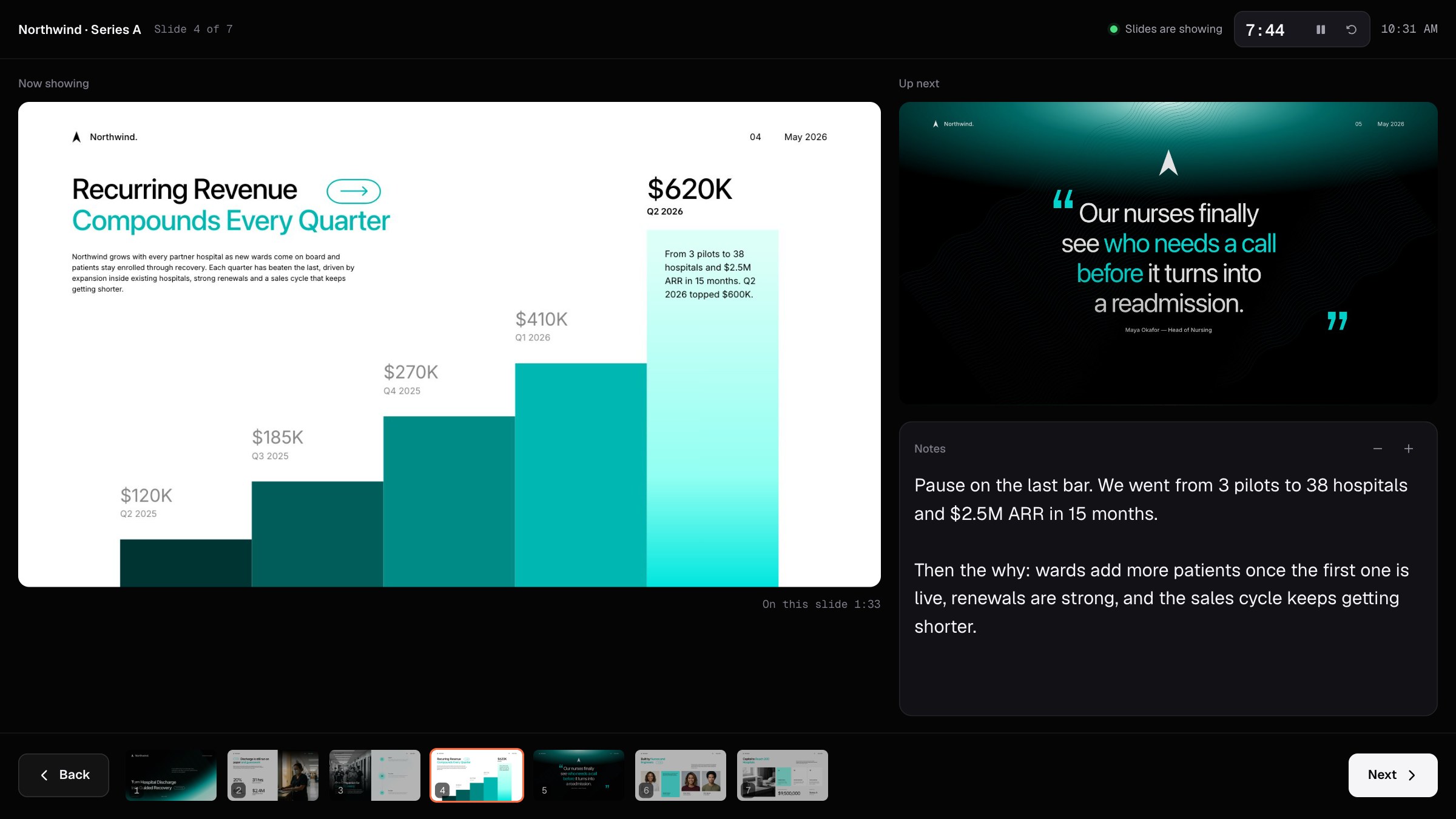
Presenter view
Everything you need, on your screen only.
Before, during and after
From the first slide to the last question.
Present to the room or a video call, then let the deck keep answering when you’ve moved on.
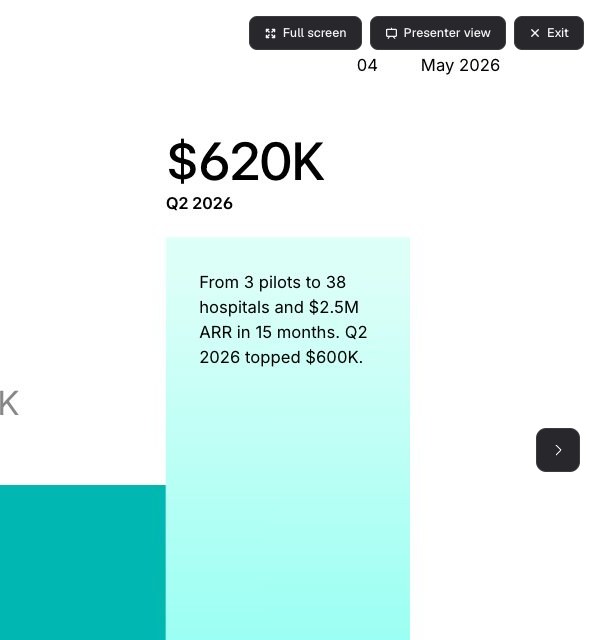
Present mode
Full screen in one click. Press P to open presenter view in its own window, and move it to your own screen.
Present on Google Meet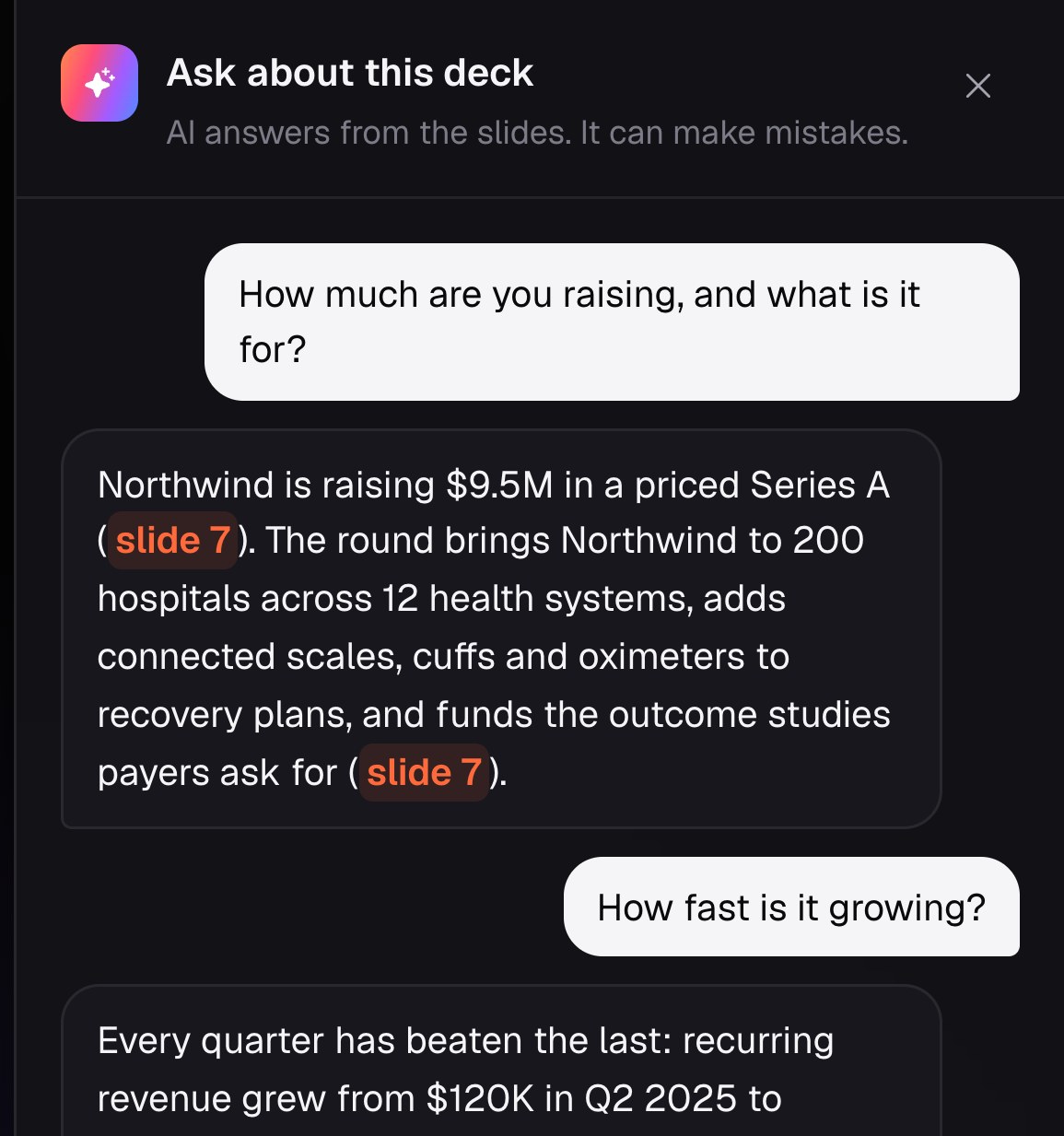
Ask AI
People with the link ask questions. AI answers from your slides and links each slide it used.
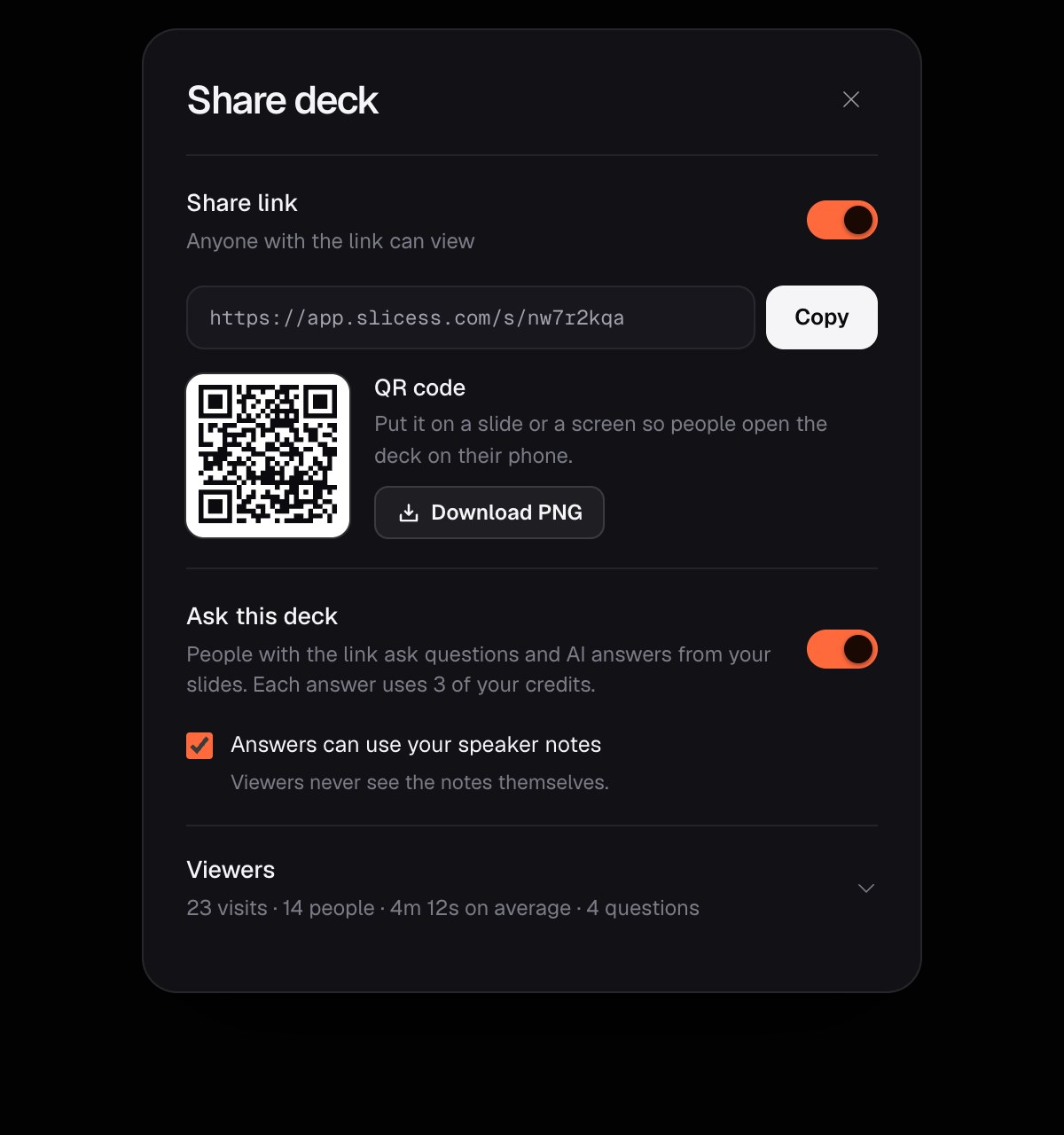
Link and QR code
Share a view-only link, or put its QR code on your last slide so the room can open the deck on their phones.
Present, share and export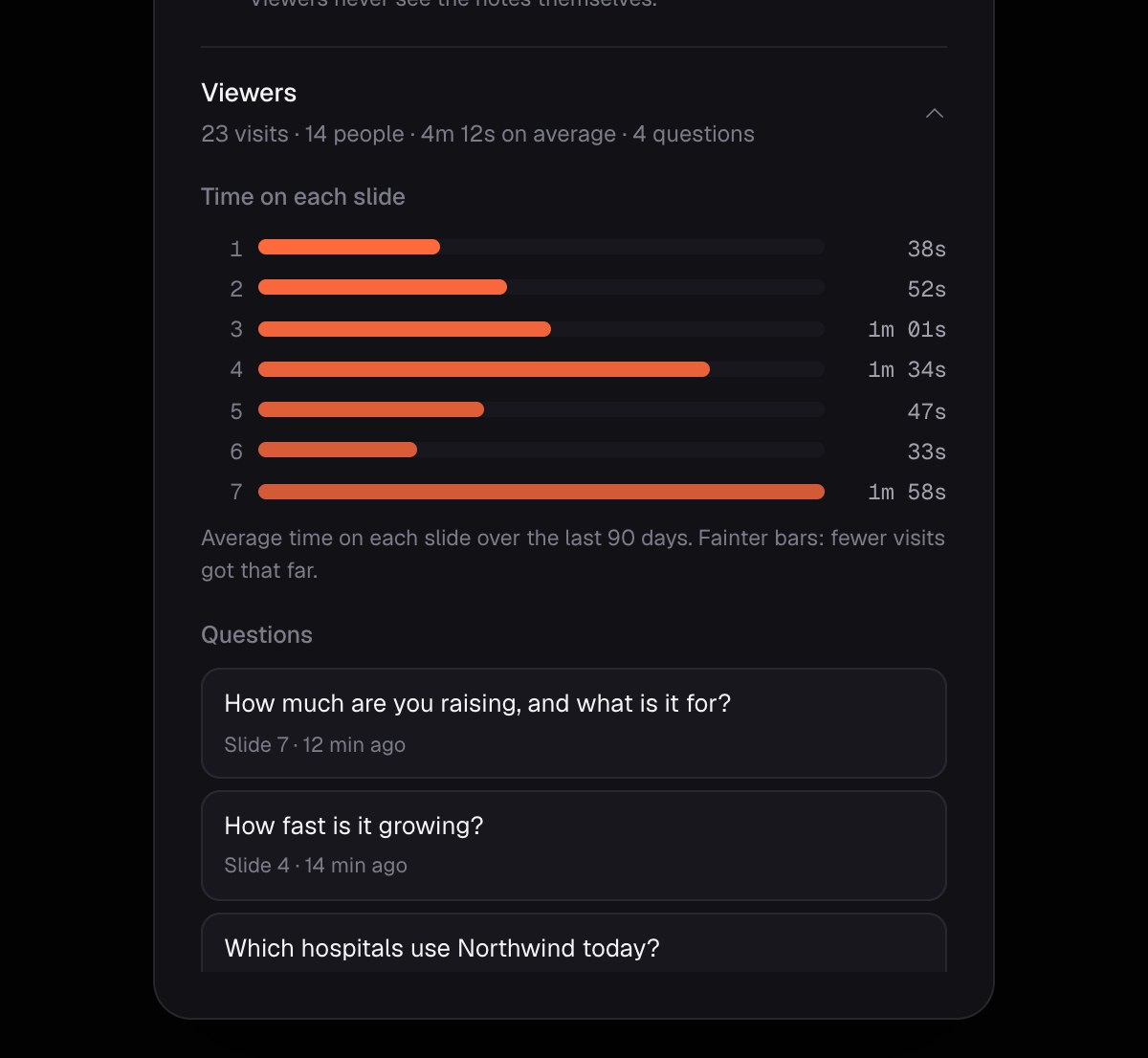
Viewer stats
See how many people opened the link, how long they spent on each slide, and every question they asked.
How it works
Present and share in three steps.
Open presenter view
Press Present, then Presenter view or P. Keep presenter view on your screen and the slides on the projector, or in the tab you share on a call.
Present
Move through the slides from presenter view with the arrow keys, Space or a clicker. Your notes, the timer and the next slide stay with you.
Let the deck answer
Send the link or show the QR code. With Ask AI on, people get answers from your slides, and you see what they asked.
What you get
Made for the moment you present.
Everything that helps you while you talk, and keeps the deck useful after you stop.
- Presenter view in its own window: the slide that’s showing, the next one, notes, a timer and the clock
- Notes in large type you can make bigger or smaller, and a strip to jump to any slide
- Works with presentation clickers: the arrow keys, Space, Page Up and Page Down
- Share only the slides on Google Meet, Zoom or Teams, and keep your notes to yourself
- A view-only link and a QR code for every shared deck
- Ask AI and viewer stats on Pro and up: answers from your slides, and what people looked at and asked
| Plans | Present mode, presenter view, share links and QR codes on every plan; Ask AI and viewer stats on Pro and up |
| Ask AI | 1 credit for every 4 answers, from the deck owner’s credits; up to 50 answers per deck a day |
| Speaker notes | Only you see them. Answers can use them if you allow it, and viewers never see the notes themselves |
| Keys | →, Space or Page Down for the next slide, ← or Page Up to go back, P for presenter view, F for full screen, Esc to stop |
| Browsers | Presenter view and the slides window stay in step in the same browser, on one or two screens |
Questions
Presenting and Ask AI, answered.
What do people see if I share my screen on Google Meet?
Can I use presenter view with one screen?
Where do Ask AI’s answers come from?
Who pays for the answers?
Can people see my speaker notes?
Do presenting and sharing cost credits?
More with Slicess
More you can do with a deck.
Present it. Let it answer the rest.
Describe it, drop in your sources, and get a real canvas back in about a minute. Free to start.
150 free credits every month · No card needed