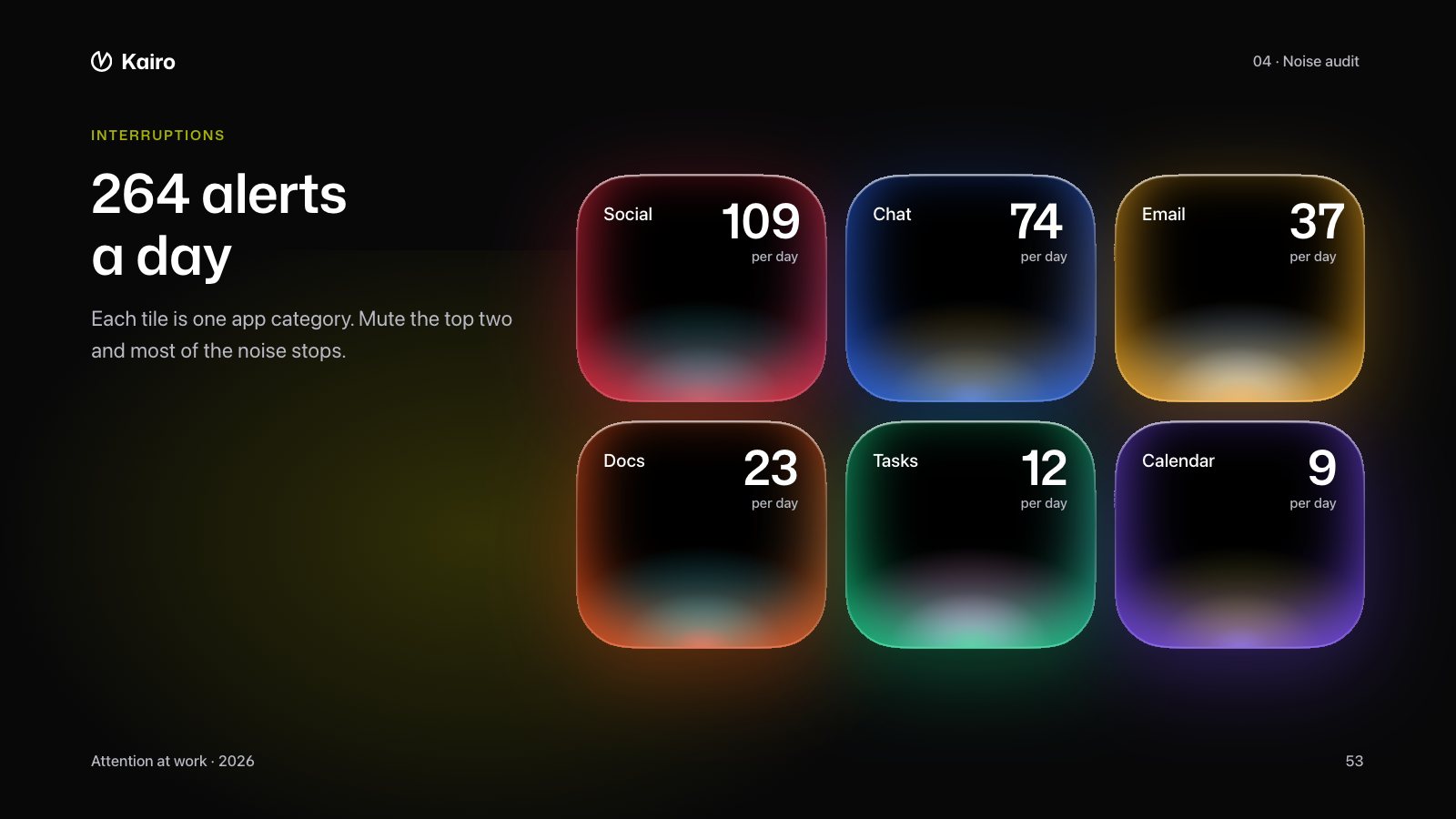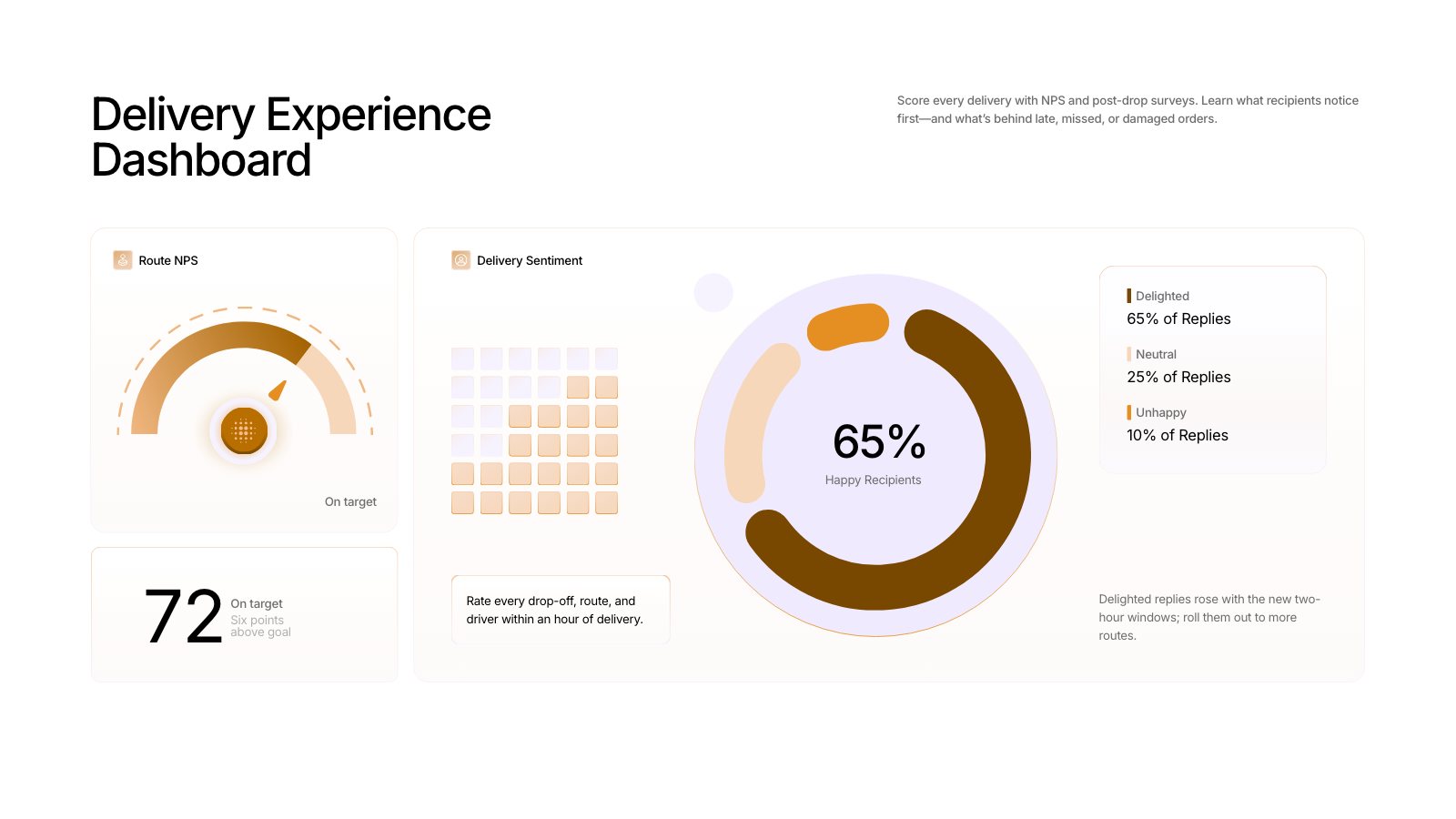
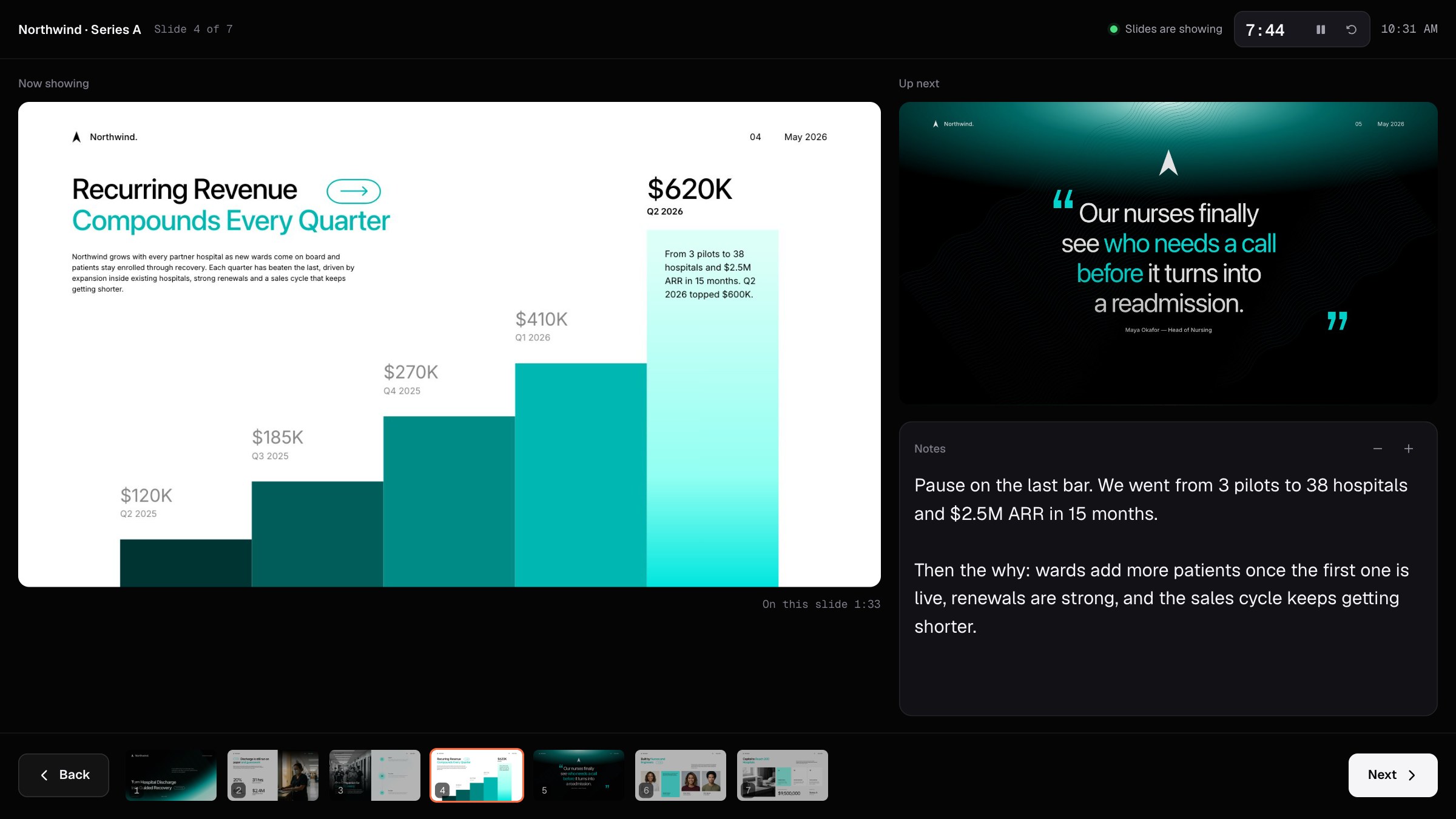
On a video call, people see exactly what you share. Share only the slides, and presenter view (your notes, a timer and the next slide) stays with you.
What people see
| What you share in Meet | What people see |
|---|---|
| A tab: the tab with your slides (best) | Only the slides. Presenter view is a separate window, so it stays private, even on top of the slides on your screen. |
| A window: the browser window with your slides | Only the slides, as long as presenter view stays in its own window. |
| Your entire screen, on one screen | Everything on it, including presenter view and your notes. Avoid this. |
| Your entire screen, with two screens | Whatever is on the screen you choose. Put the slides there and presenter view on the other. |
Step by step
- In the Slicess editor, press Present. Your slides open in a new tab.
- Press P or Presenter view. Presenter view opens in its own window; move it where you can see it. If nothing opens, allow pop-ups for app.slicess.com.
- In Google Meet, click Present now, choose A tab, pick the Slicess tab with your slides and click Share.
- Present from presenter view: →, Space or a clicker for the next slide, ← to go back. People see the slides change in the tab you shared.
- When you’re done, click Stop presenting in Meet, and press Esc on the slides to leave present mode.
Already sharing another tab?
If you started sharing a different tab, like the editor, Meet keeps showing it when your slides open in a new tab. Go to the slides tab and click Share this tab instead on the banner at the top.
With a projector or a second screen
Drag the slides window to the projector or second screen and press F there for full screen. Keep presenter view on your laptop. On a call at the same time, share just the slides tab, as above.
Zoom and Microsoft Teams
The same idea works: share the window with your slides rather than your whole desktop, and keep presenter view in its own window.
After the meeting
Press Share in the editor for a view-only link and its QR code to send round. On Pro and up, turn on Ask this deck and people can ask questions about the deck, answered by AI from your slides. See Presenter view and Ask AI.