Edit with AI
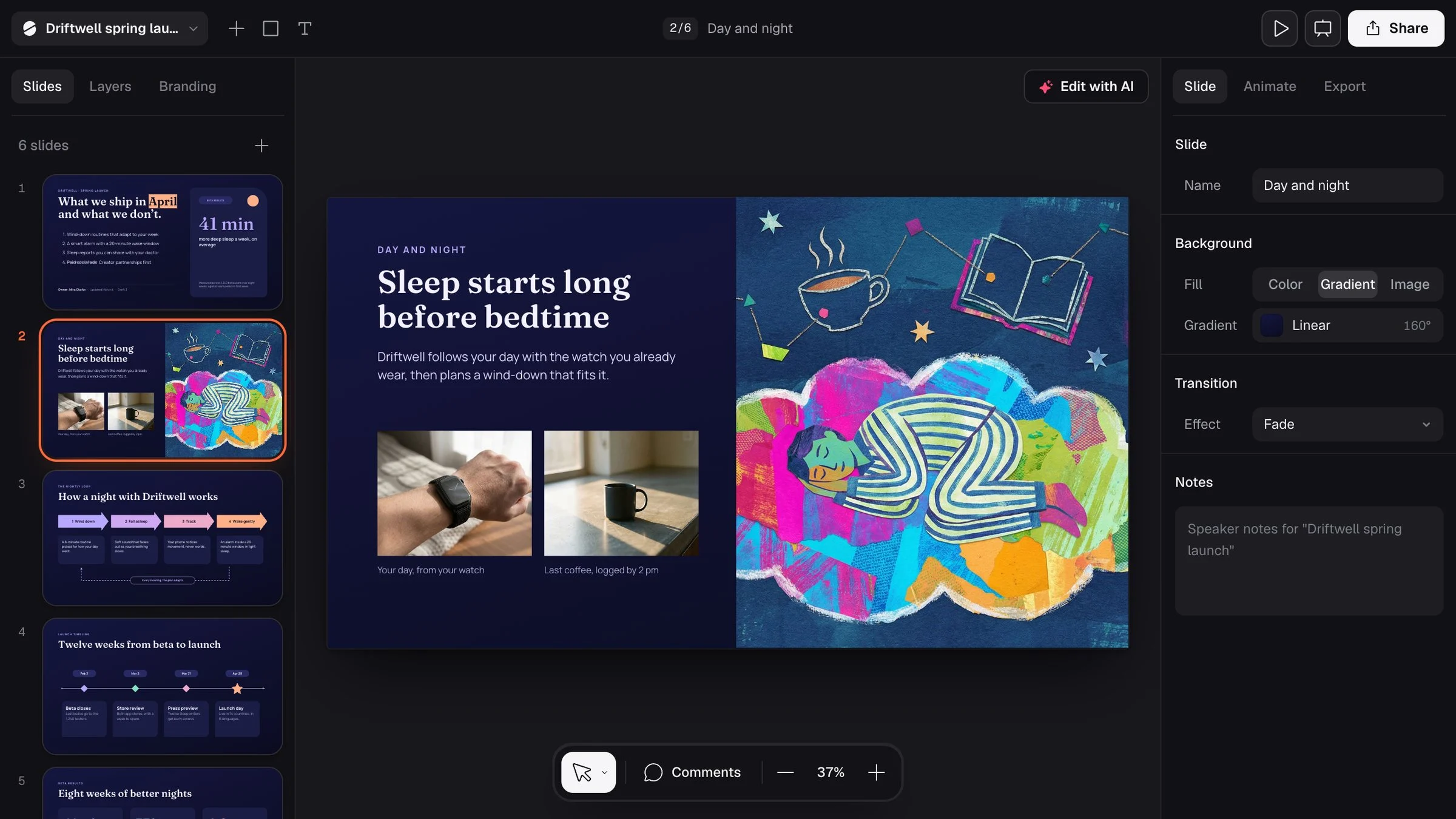
Change any slide by asking.
Select a slide or one part of it and say what you want: shorter, clearer, a chart, a timeline, another language. The rest of the deck stays as it is.
On every plan · AI edits use your monthly credits; editing by hand is free
In the editor
Edit with AI sits on every slide.
What you can ask
Pick an action, or type your own.
Actions
Writing, translation, tone, a chart, turning a slide into cards, steps or a timeline, speaker notes, or a new slide in your deck’s design.
Edit with AI guideTypography
Fine-tune what the AI wrote: fonts, sizes, spacing and lists, by hand and free.
How it works
Change a slide in three steps.
Select
Pick a slide, or one text box or shape on it. The AI changes only what you selected.
Ask
Choose an action or type your change: “split this into two columns”, “make the title a question”.
Keep or undo
Every AI edit can be undone, and Version history keeps the deck as it was before.
What you get
Fix one slide without starting over.
The AI works on the slide in front of you and leaves the rest of the deck alone.
- Improve the writing, fix spelling and grammar, or make it longer, shorter, simpler or more specific
- Add a chart, or turn a slide into cards, steps, a timeline, a comparison, big numbers or two columns
- Translate into one of 15 languages, or change the tone
- Run a writing change, a translation or a tone on every slide at once
- Ask a question about a slide without changing it
- Write speaker notes, or add a new slide in your deck’s design
| Plans | Every plan |
| Credits | From your plan’s monthly credits; editing by hand is free |
| Languages | 15 |
| Undo | Every AI edit, plus Version history |
Questions
Edit with AI, answered.
Does it change the whole deck?
Can I undo an AI edit?
Which languages can it translate to?
Is editing by hand free?
More with Slicess
More ways to finish your deck.
Fix one slide without starting over.
Describe it, drop in your sources, and get a real canvas back in about a minute. Free to start.
1,000 free credits every month · No card needed