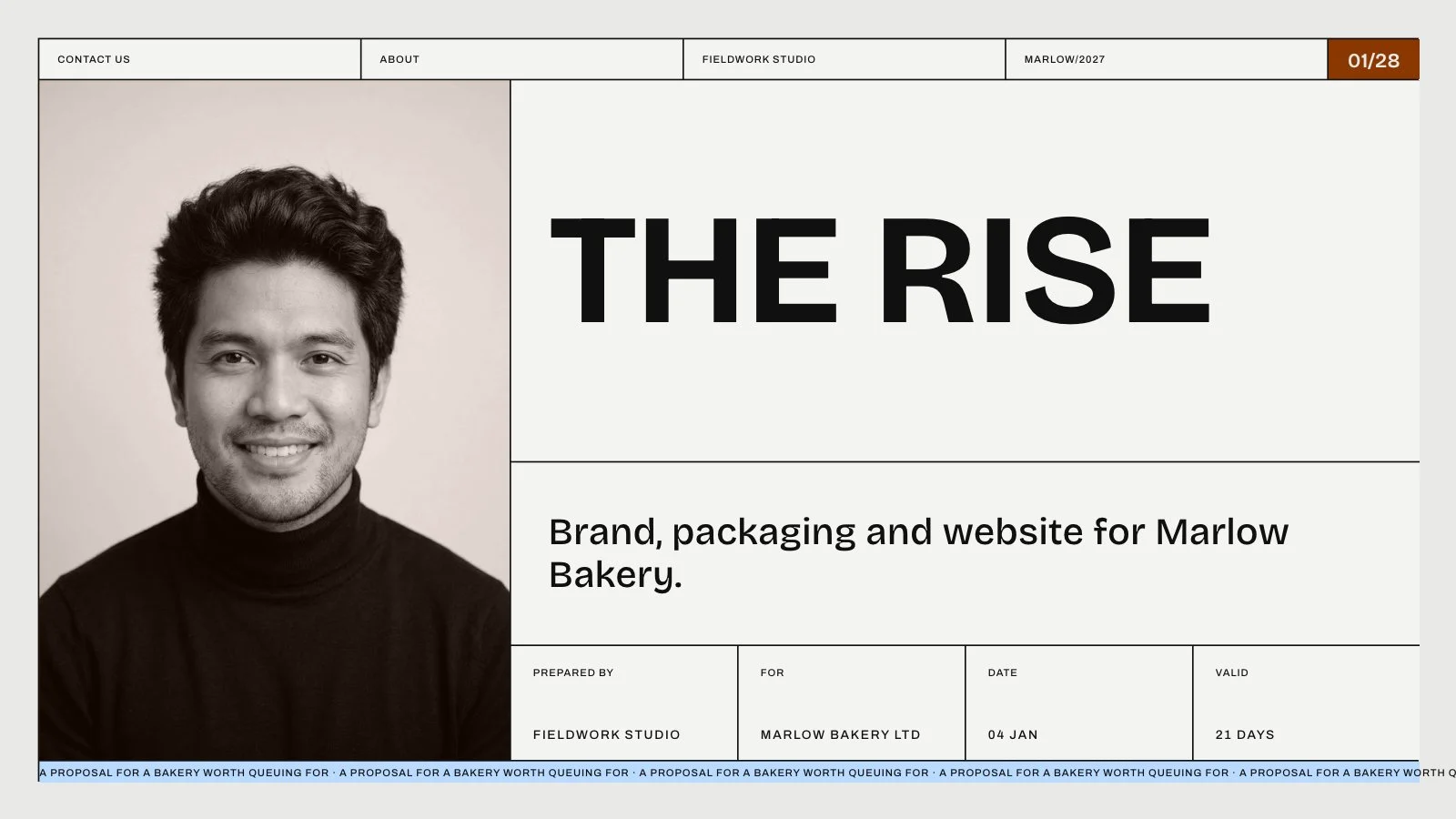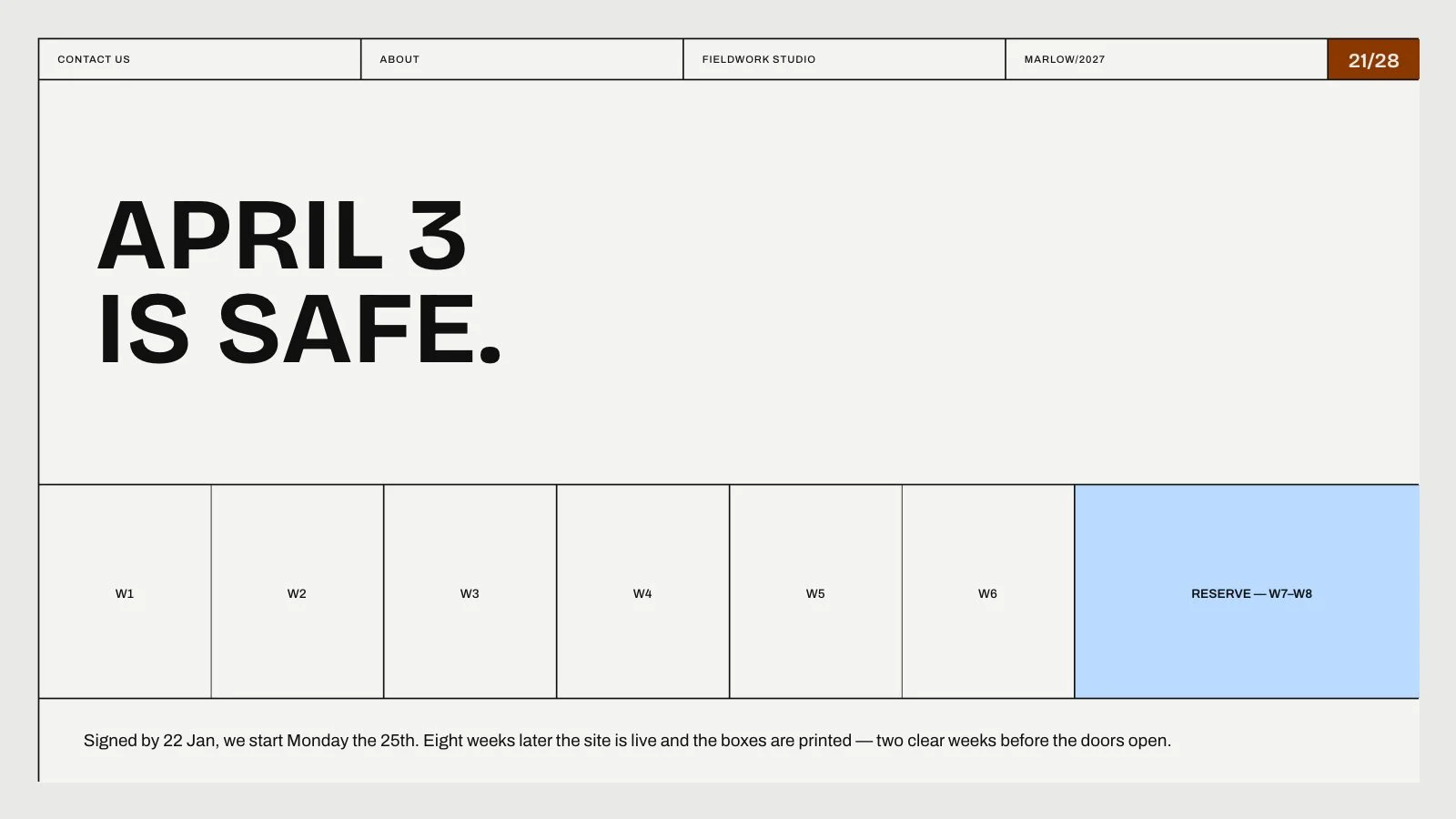
Paste your notes into the Slicess prompt box, or attach them as a Word, text or Markdown file, and say what the deck is for. Slicess groups the notes into a story and writes and designs every slide from them.
From a Google Doc
- In Google Docs, choose File → Download → Microsoft Word (.docx).
- In Slicess, click the paperclip in the prompt box and attach the .docx. You can attach up to 8 files.
- Add one line on the deck: who it’s for, roughly how many slides, and the tone. For example: “A 10-slide update for our board from the attached notes. Direct and short.”
- Press Generate. Slicess may ask a couple of questions and show the outline first; change anything there before the slides are made.
From rough notes
Meeting notes, bullet points or a brain dump work too. Paste them straight into the prompt box with a line on what the deck is for. Long passages get shortened to fit a slide, and anything you want back is one edit away.
Get a better structure
- Use headings in your doc. Each heading tends to become a section or a slide.
- Put numbers in the notes. Real figures become charts and big-number slides instead of vague claims.
- Say what to leave out. “Skip the history section” saves a round of edits.
- Name the audience. A deck for investors and one for a team meeting need different slides from the same notes.
After the deck is made
Every word, picture and color can be changed on the canvas. To change a whole slide, use Edit with AI: make it shorter, turn it into steps or a timeline, or add a chart.