
In Microsoft Teams, share the window that shows your slides, not your whole screen, and keep presenter view in a window of its own. People in the meeting see only the slides; your notes, the timer and the next slide stay with you.
What people see
| What you share in Teams | What people see |
|---|---|
| Window: the browser window with your slides (best in the Teams app) | Only the slides. Presenter view is a separate window, so it stays private, even on top of the slides on your screen. |
| A browser tab, if you use Teams in the browser | Only that tab. Pick the tab with your slides. |
| Screen, on one screen | Everything on it, including presenter view and your notes. Avoid this. |
| Screen, with two screens | Whatever is on the screen you choose. Put the slides there and presenter view on the other. |
Step by step
- In the Slicess editor, press Present. Your slides open in a new tab.
- Drag that tab out of the browser so the slides have a window of their own. Teams shares a whole window and whichever tab is showing in it.
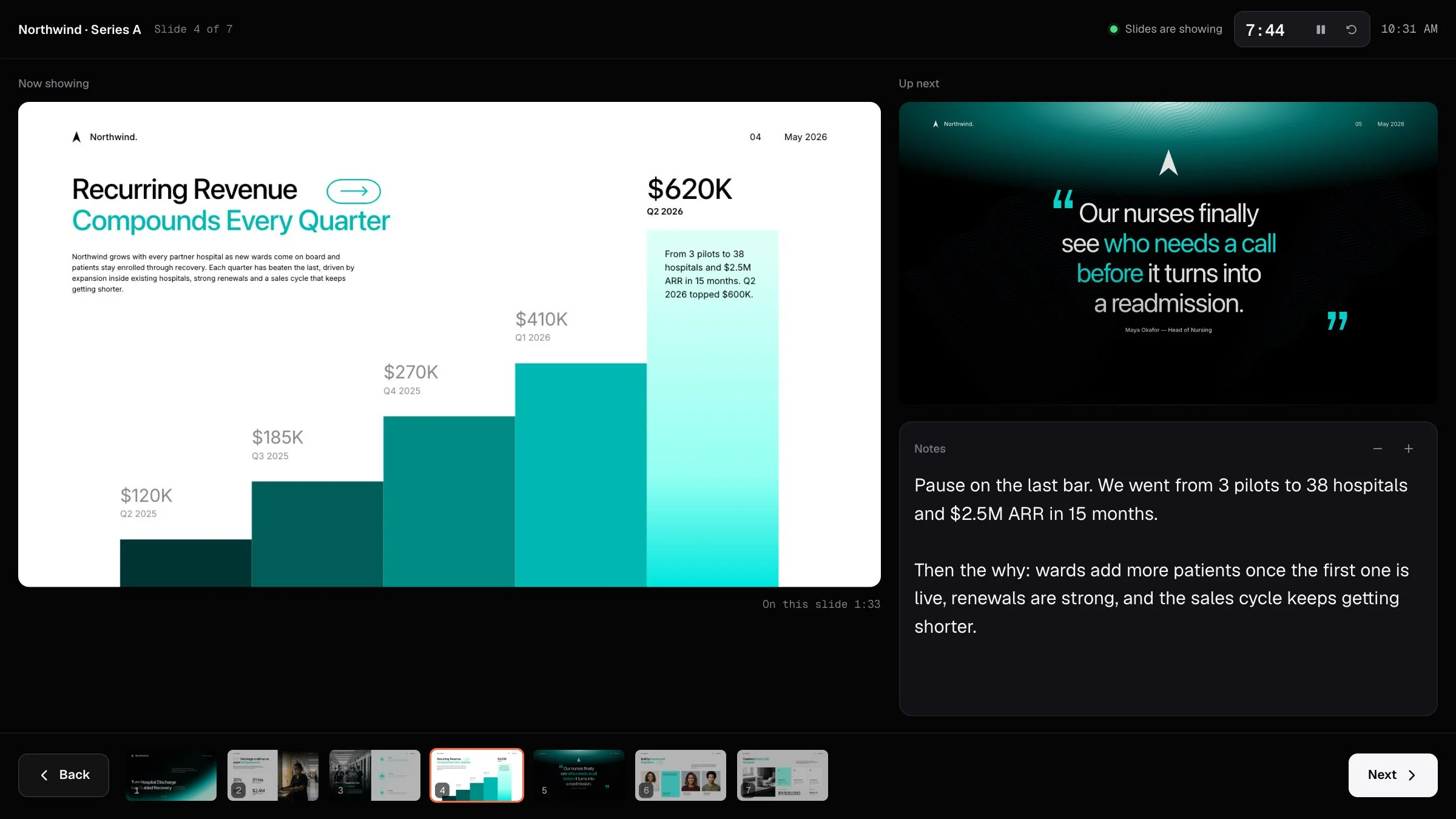
- Press P or Presenter view. Presenter view opens in its own window; move it where you can see it. If nothing opens, allow pop-ups for app.slicess.com.
- In the Teams meeting, click Share at the top. Under Window, pick the browser window that shows your slides, not your screen.
- Present from presenter view: →, Space or a clicker for the next slide, ← to go back. People see the slides change in the window you shared.
- When you’re done, click Stop sharing in Teams, and press Esc on the slides to leave present mode.
Teams in the browser
If you join from teams.microsoft.com, the browser asks what to share. Choose the tab with your slides, so presenter view, in its own window, stays private. You can skip dragging the tab out.
On a Mac
The first time you share from the Teams app, macOS asks you to let Teams record your screen. Turn on Microsoft Teams in System Settings → Privacy & Security → Screen & System Audio Recording, then restart Teams and share again.
What about PowerPoint Live?
Teams can present a PowerPoint file itself (PowerPoint Live), with its own notes view. That works for .pptx files stored in OneDrive or SharePoint. A Slicess deck is presented from your browser, so share its window as above. You can still export any deck to PowerPoint on a paid plan if your team prefers PowerPoint Live.
Presenting on another app? See Google Meet and Zoom.