
Share the window with your slides in Zoom, not your whole screen, and keep presenter view in a window of its own. People on the call see only the slides; your notes, the timer and the next slide stay with you.
What people see
| What you share in Zoom | What people see |
|---|---|
| The browser window with your slides (best) | Only the slides. Presenter view is a separate window, so it stays private, even on top of the slides on your screen. |
| Screen or Desktop, on one screen | Everything on it, including presenter view and your notes. Avoid this. |
| Screen, with two screens | Whatever is on the screen you choose. Put the slides there and presenter view on the other. |
| Portion of screen | Anything that moves into the shared area, presenter view included. Avoid this. |
Step by step
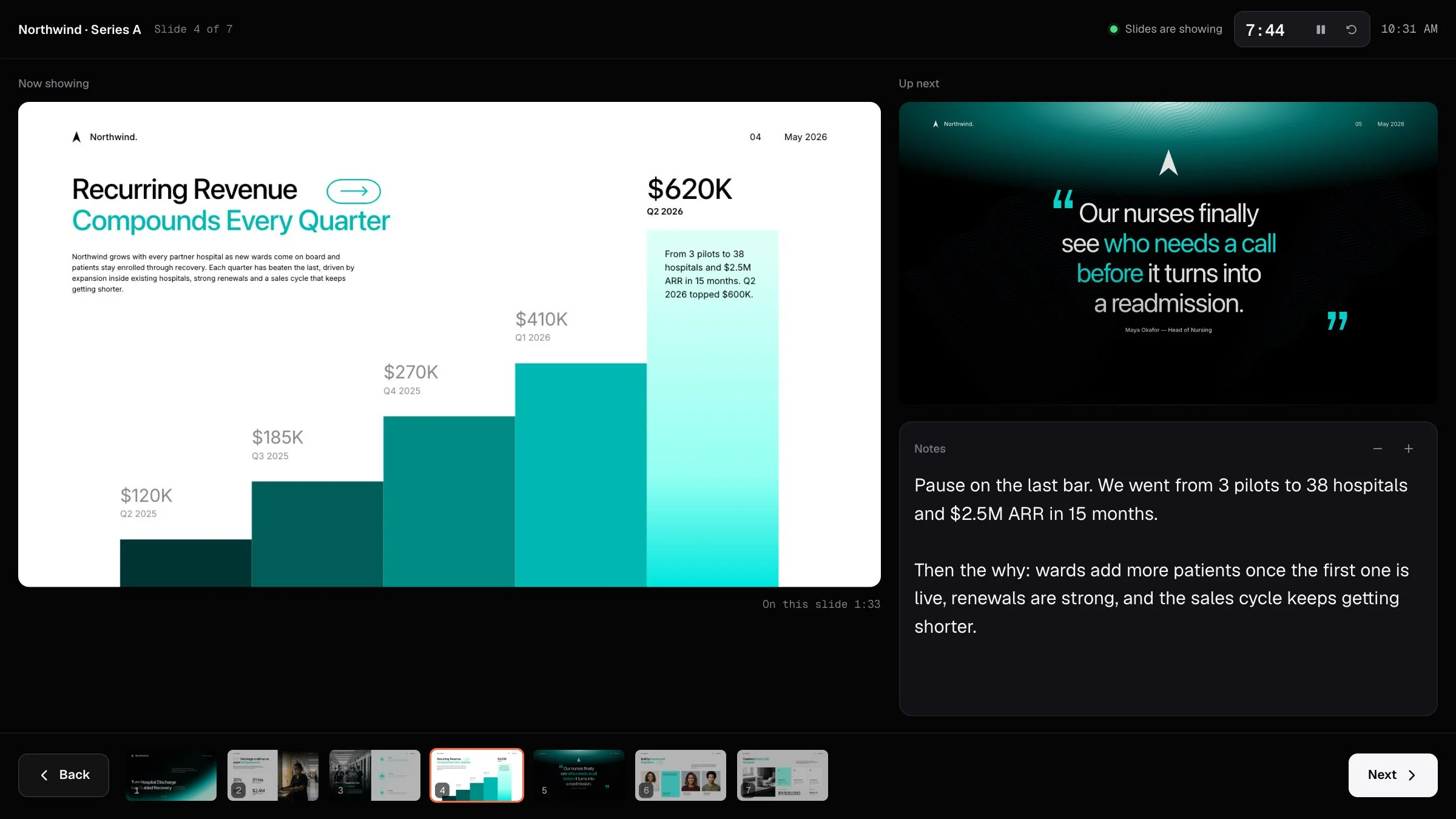
- In the Slicess editor, press Present. Your slides open in a new tab.
- Drag that tab out of the browser so the slides have a window of their own. Zoom shares a whole window and whichever tab is showing in it, so the slides shouldn’t share a window with the editor or your email.
- Press P or Presenter view. Presenter view opens in its own window; move it where you can see it. If nothing opens, allow pop-ups for app.slicess.com.
- In Zoom, click Share (or Share screen). On the Basic tab, pick the browser window that shows your slides, not Screen or Desktop, and click Share.
- Present from presenter view: →, Space or a clicker for the next slide, ← to go back. People see the slides change in the window you shared.
- When you’re done, click Stop share in Zoom, and press Esc on the slides to leave present mode.
On a Mac
The first time you share, macOS asks you to let Zoom record your screen. Turn on Zoom in System Settings → Privacy & Security → Screen & System Audio Recording, then restart Zoom and share again.
With a projector or a second screen
Drag the slides window to the projector or second screen and press F there for full screen. Keep presenter view on your laptop. If the meeting is also on Zoom, share the slides window, as above.
Presenting a PowerPoint
Import the .pptx into Slicess (on Pro and up), or attach it as a PDF to build a new deck from it, then present it the same way. Your speaker notes come with the import. See Redesign a PowerPoint.
On another app? See Google Meet and Microsoft Teams.